Somewhere in your store is a product page that has held a page-one ranking for years, and your WooCommerce to Magento migration will either carry it across intact or quietly drop it. The same is true of every customer account and order behind it. Your rankings live in three things you can list, move, and check: your URLs, your metadata, and the redirects that connect old addresses to new ones. This guide walks you through the move to Magento (Magento Open Source or Adobe Commerce) in three phases: Prepare, Execute, and Stabilize.
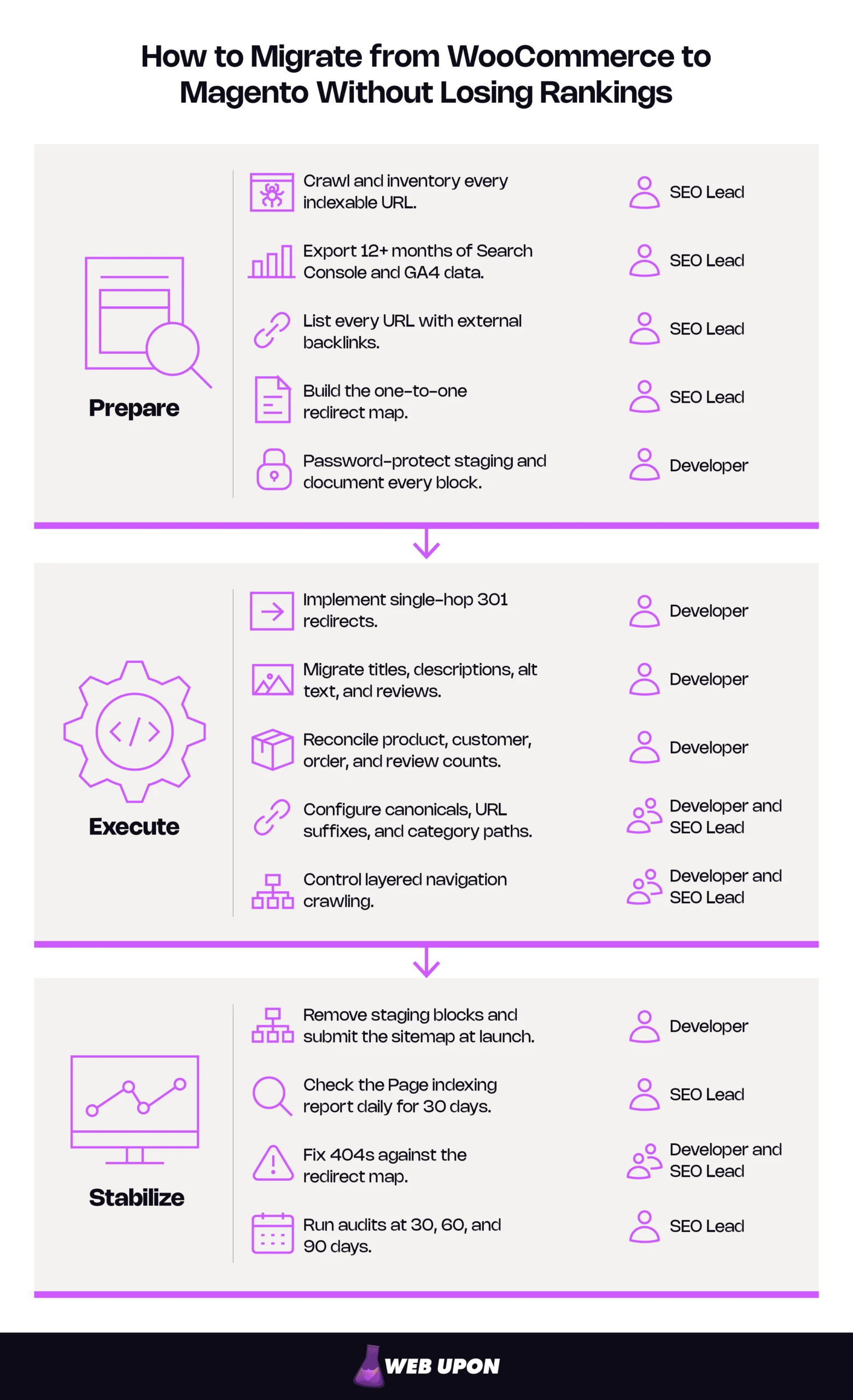
Key Takeaways
- Rankings live in assets, not platforms. URLs, metadata, and redirects carry your SEO; move them deliberately and the signals move with them.
- Keep URLs identical where you can, and send every changed URL to its new home with a single-hop 301.
- Transfer metadata, alt text, reviews, and schema manually. Don’t let Magento’s auto-generated defaults fill the gaps.
- Block staging with a password, not robots.txt, and remove every block at launch.
- Expect a few weeks of fluctuation. Lasting losses almost always trace back to missed redirects or leftover noindex tags.
- Monitor Google Search Console daily for 30 days, audit at 30, 60, and 90, and optimize only after rankings stabilize.
Done this way, a few weeks of ranking fluctuation is normal and recoverable while Google recrawls your URLs. Permanent losses almost always trace back to two causes: missed redirects and noindex tags left over from staging.
Get it right and you keep what took years to build: the link equity pointing at your pages and an intact customer and order history. You also gain a faster store with room to grow.
What to Expect After Launch
| Timeframe | What’s Normal | Warning Signs |
| Weeks 1–2 | Google follows redirects and swaps new URLs into results. Rankings shuffle. | A sitewide traffic drop, a 404 spike, or pages excluded by noindex. |
| Weeks 3–6 | Most rankings settle near pre-launch positions. Old URLs fade from the index. | Top pages still missing, or old URLs indexed instead of new ones. |
| Days 30–90 | Traffic tracks your seasonally adjusted baseline. Speed gains reach field data. | Persistent declines on specific pages, or a growing “Crawled – currently not indexed” count. |
Fluctuation in the first weeks is expected; declines that last past week six need investigating.
The risk hides in how differently the two platforms structure the same store.
How WooCommerce and Magento Differ for SEO
Put the same product in both platforms and you get two different addresses, and that gap, multiplied across a catalog, is where migration risk lives.
Both platforms run stores that rank well. They just organize the same information differently. WooCommerce extends WordPress, so each product is a post and most SEO fields live in post meta written by an SEO plugin. Magento uses an EAV (entity-attribute-value) model, a database design that stores each product attribute separately so catalogs can scale to hundreds of thousands of SKUs.
| SEO Element | WooCommerce Default | Magento Default | Migration Risk |
| Product URL | /product/product-name/ | /product-name.html | Every product URL changes by default. |
| Category URL | /product-category/category-name/ | /category-name.html | Every category URL changes, nested ones included. |
| Pagination | /product-category/shoes/page/2/ | /shoes.html?p=2 | Paginated URLs change format. |
| Data model | Posts and post meta | EAV attribute sets | Custom and SEO plugin fields can be dropped. |
| Variations | Variable products, usually one URL with parameters | Configurable products with child simple products | Child products can become thin, indexable pages. |
| Blog | Native WordPress posts | No native blog | Blog URLs need a deliberate plan. |
| Product tags | Native tag archives | No equivalent | Tag pages vanish unless redirected. |
| Layered navigation | Depends on theme and plugins | Query-parameter URLs on every category | Near-duplicate URLs drain crawl budget. |
| Metadata defaults | Set per page in the SEO plugin | Empty product fields auto-fill from templates (name, or name plus description) | Custom titles get replaced by generic ones. |
Catalog size changes how you migrate WooCommerce to Magento. Under about 1,000 SKUs, you can map and spot-check most of this by hand. Above that, you need scripted mapping and bulk validation, because no one reviews 30,000 rows reliably.
Knowing where the platforms differ tells you what to capture first: everything you have today.
Phase 1: Prepare Your SEO Migration Foundation
Before you move a single file, this phase gives you three assets: an audit baseline, a complete URL map, and a staging site you’ve proven works.
Conducting a Full Pre-Migration SEO Audit of Your WooCommerce Store
This step records every ranking asset you own, so you can prove after launch that nothing went missing.
Crawl your live store with a desktop SEO crawler and save every indexable URL with its title, meta description, H1, canonical tag, and image alt text. Then cross-check that list against your XML sitemap and Search Console. A crawler only finds linked pages, and the old product URL still collecting backlinks is often the one nothing on your site links to anymore.
Export your history next. Search Console keeps about 16 months of data. Once you launch, that history becomes your only benchmark, so export at least 12 months. Add GA4 landing-page data to see which URLs earn revenue, not just visits.
Finally, list every URL with external backlinks, using the Search Console Links report alongside a backlink tool. A URL with backlinks needs a redirect even if it gets almost no traffic. Note any structured data your pages output, and if you sell across languages or regions, record your hreflang tags too.
A pre-migration SEO audit this thorough becomes the yardstick for every decision after launch.
Pre-Migration Audit Inventory
| What to Capture | Where to Get It | Why It Matters |
| Every indexable URL | Desktop crawler, XML sitemap, Search Console | Becomes the “old URL” column of your redirect map. |
| Titles, descriptions, H1s, alt text | Crawler export | Lets you confirm each field arrives in Magento. |
| Queries, clicks, impressions (12+ months) | Search Console Performance report | Your before-and-after benchmark. |
| Traffic and revenue by landing page | GA4 | Shows which URLs to protect first. |
| URLs with external backlinks | Search Console Links report, backlink tool | Catches low-traffic URLs that still need redirects. |
| Canonicals, structured data, hreflang | Crawler export, Rich Results Test | Signals you must rebuild in Magento. |
You can’t benchmark what you didn’t record, so capture everything first.
With the inventory done, every one of those URLs needs a new home.
Mapping Every URL Structure Difference Between WooCommerce and Magento
This step produces your redirect map, the single document that decides whether your link equity survives.
Good 301 redirect mapping starts with a spreadsheet, built before any data moves, that pairs every old URL with its new one. Cover products, categories, tag archives, paginated pages, blog posts, and custom post types. Flag the URLs whose structure changes most for manual review, starting with your highest-traffic and most-linked pages. Our guide to the SEO impact of changing URLs explains why each change carries risk.
Decide on the .html suffix early. Magento adds it to product and category URLs by default, but you can clear both suffix fields to stay closer to your WooCommerce slugs and cut the number of redirects. Decide once. Changing suffixes after launch means a second round of redirects.
Four page types need their own plan:
- Blog posts: Magento has no native blog. A blog extension keeps everything on one platform but usually changes URLs. CMS pages suit a handful of evergreen articles. Keeping WordPress in a /blog/ subdirectory can preserve blog URLs exactly.
- Product tags: Magento has no tag archives. Redirect each tag to its closest category, or fold weak tags into one.
- Variable products: Variations become configurable products with child simple products. Set each child to “Not Visible Individually” so it never becomes a thin, indexable page. Most WooCommerce variations never had their own URLs anyway, only parameters on the parent, so a canonical usually covers them. Redirect a variation only if it was indexed on its own.
- Pagination: Google no longer uses rel=next/prev. Give each paginated page a self-referencing canonical, and map /page/2/ to ?p=2 rather than sending every page to page 1.
URL Mapping Examples
| Page Type | WooCommerce URL | Magento URL | Action |
| Product | /product/trail-runner/ | /trail-runner.html | 301 |
| Category | /product-category/shoes/ | /shoes.html | 301 |
| Subcategory | /product-category/shoes/running/ | /shoes/running.html | 301 |
| Product tag | /product-tag/waterproof/ | /shoes/waterproof.html | 301 to closest category |
| Blog post | /fit-guide-for-trail-shoes/ | /blog/fit-guide-for-trail-shoes/ | 301, or unchanged if WordPress stays in /blog/ |
| Paginated category | /product-category/shoes/page/2/ | /shoes.html?p=2 | 301 to the matching page |
Every changed URL gets exactly one direct destination, paginated pages included.
For larger catalogs, build the map with these columns: Old URL | New URL | Page Type | Traffic | Backlinks | Priority | Status Code Verified. The last column stays empty until staging proves each row works.
A map on paper proves nothing until you test it somewhere Google can’t see.
Setting Up a Staging Environment to Test SEO Configurations Safely
This step gives you a private copy of the new store where breaking things costs nothing.
Build staging to mirror production: same Magento version, same extensions, same caching. Lock it with password protection or HTTP authentication, the method Google recommends for keeping private content out of Search, and add a noindex tag as a backup. Don’t rely on robots.txt alone. A disallow stops Google from crawling the page, so it never sees the noindex, and a linked staging URL can still slip into the index.
Then prove the map works. Give your crawler the staging credentials, load the old URL list in list mode, and confirm each returns one 301 landing on a 200 page. The same crawl exposes orphaned pages, broken links, and missing metadata. For speed testing, PageSpeed Insights can’t get past a password, so use Lighthouse in Chrome DevTools now and PageSpeed Insights right after launch.
Staging Sign-Off
- Every mapped redirect returns one 301 to a 200 page
- Titles, descriptions, H1s, and alt text present on sampled pages
- No orphaned pages or broken internal links
- Lighthouse scores benchmarked in production mode
- Every staging block documented for removal at launch
That last box looks minor. It’s the difference between a quiet launch and a store Google can’t index.
With a baseline, a map, and a safe test environment in place, your store is ready to move.
Phase 2: Execute the Migration Without Losing Search Rankings
This phase protects four things while your data is in motion: link equity, on-page signals, data integrity, and technical configuration.
Give each workstream a named owner before cutover. Named owners give directors a clear line of accountability, and they keep SEO-critical tasks from falling into the gap between the SEO lead and the developers.
| Workstream | What It Protects | Typical Owner |
| 301 redirects | Link equity and rankings | SEO lead maps, developer implements |
| On-page SEO data | Titles, descriptions, alt text, schema | SEO lead specifies, developer migrates |
| Data integrity | Products, customers, orders, reviews | Developer, with SEO checks on URLs and SKUs |
| Technical SEO configuration | Canonicals, crawl control, sitemaps, speed | Developer and SEO lead together |
No workstream should reach cutover day without an owner.
Implementing a Bulletproof 301 Redirect Strategy in Magento
This step turns your map into working redirects that hand each old URL’s authority to its new home.
Use 301 (permanent) redirects for everything. A permanent redirect tells Google the move is final, so it transfers ranking signals and shows the new URL in results. Point every old URL straight at its destination. A redirect chain, where one redirect leads to another, slows crawling and adds a failure point at every hop. Googlebot follows at most 10 hops by default, and Google advises redirecting to the final destination directly.
Correct (single hop):
/product/trail-runner/ ──301──▶ /trail-runner.html
Redirect chain (avoid):
/product/trail-runner/ ──301──▶ /trail-runner ──301──▶ /trail-runner.html
Magento URL rewrites live at Marketing > SEO & Search > URL Rewrites. That screen is fine for individual fixes but impractical for thousands, and Magento Open Source has no native bulk import. Large catalogs choose between a vetted bulk-import extension, a scripted import into the rewrite table, or server-level rewrite maps, which answer legacy URLs before Magento does and keep its rewrite table lean. Your developer should confirm the fit for your version and hosting.
As a working rule, verify the top 20% of URLs by traffic, revenue, and backlinks first, then bulk-check every row and fill in the Status Code Verified column. Four rules prevent the most common mistakes:
- Keep Create Permanent Redirect for URLs if URL Key Changed set to Yes, so future edits redirect automatically.
- Send discontinued products to a replacement or the closest category, never the homepage. Google may treat mass redirects to the homepage as soft 404s.
- Return a 410 only for content removed on purpose, with no replacement and no backlinks. Google drops 404 and 410 URLs from its index the same way, so the choice is about accuracy, not speed.
- Keep redirects for at least a year, as Google’s site move guidance advises, and ideally permanently. See Google Search Central on redirects for how each type is handled.
Redirect Decision Guide
| Situation | Redirect To | Status Code |
| Product kept, URL changed | New product URL | 301 |
| Category renamed or restructured | New category URL | 301 |
| Product discontinued, close match exists | Replacement product or closest category | 301 |
| Product tag archive | Most relevant category | 301 |
| Paginated category page | Matching page (?p=n) | 301 |
| Variation indexed as its own URL | Parent configurable product | 301 |
| Content removed, no replacement, no backlinks | None | 410 |
Every redirect should land on the most relevant live page, not the most convenient one.
Redirects carry the authority across; now the pages they land on have to say the same things to Google.
Migrating and Preserving Critical On-Page SEO Data in Magento
This step makes sure every title, description, and image label you’ve optimized arrives word for word.
Your custom meta titles and descriptions probably don’t live in the WooCommerce product record at all. They sit in post meta written by your SEO plugin, so your migration has to read those fields specifically. Map them into each product’s Search Engine Optimization section in Magento: URL Key, Meta Title, and Meta Description. Leave them empty and Magento auto-generates them from its Product Fields Auto-Generation templates: the product name becomes the title, and the name plus the full product description becomes the meta description.
Alt text needs the same deliberate mapping: Magento stores it as the image label (base_image_label and additional_image_labels in a product import). Migrate it, along with URL keys matching your WooCommerce slugs and every category’s title and descriptions. Store-level defaults are a safety net, never a replacement for metadata you wrote.
Structured data needs rebuilding, not copying, because Magento’s default product page outputs only basic schema.org Product microdata. Implement full Product, BreadcrumbList, and Review schema in your theme or through a dedicated extension. Migrate reviews as data, not just markup: Review and AggregateRating schema must match the reviews shoppers can see. Validate on staging with Google’s Rich Results Test using its code-snippet option, since the test can’t get past your password.
On-Page Data Field Mapping
| SEO Element | Where It Lives in WooCommerce | Where It Goes in Magento | Auto-Generated by Default? |
| Meta title | SEO plugin post meta | Search Engine Optimization > Meta Title | Yes, the product or category name |
| Meta description | SEO plugin post meta | Search Engine Optimization > Meta Description | Yes, the product name plus description |
| URL slug | Product permalink | Search Engine Optimization > URL Key | Yes, from the name if missing |
| Image alt text | Media library alt attribute | Image label fields | Not documented, verify on your theme |
| Category description | Product category description | Category > Content > Description | No |
| Structured data | SEO plugin or theme | Theme templates or schema extension | Partial product markup only |
| Reviews | WooCommerce reviews | Magento product reviews | No, migrate as data |
Any field you leave blank gets a generic default, so migrate each one on purpose.
All of this metadata rides on product records, and those records have to arrive whole.
Managing Data Integrity During Product and Customer Data Migration
This step protects the records your store runs on: products, customers, orders, and reviews.
Use a reputable automated migration tool or custom migration scripts that translate WooCommerce’s tables into Magento’s EAV model without breaking the links between records. Whichever you choose, it should:
- Handle custom fields and variable products
- Preserve URL slugs and SEO fields
- Support repeated test runs
- Offer delta migration, which copies only records that changed since the last run, so cutover orders aren’t lost
Then validate attributes, custom fields, and category assignments, since post meta and attribute sets don’t map one-to-one. Hunt down orphaned records and duplicate SKUs, which create duplicate product pages and broken URLs.
Customer records aren’t a ranking factor, but they are revenue: a corrupted order history costs repeat buyers and floods your support inbox. Plan for passwords before launch. WordPress hashes passwords with phpass, or bcrypt since version 6.8, while Magento uses SHA-256 or Argon2id, so Magento can’t read WordPress hashes natively. Either announce a password reset in advance, or have a developer add an adapter that checks the old hash at first login and re-saves it in Magento’s format.
Hold a content freeze or delta window around cutover, and keep a full WooCommerce backup until the new store is stable. Then compare counts. If the totals don’t match, something fell out of the truck.
Data Reconciliation Check
| Data Type | WooCommerce Count | Magento Count | Match? |
| Products (including variations) | |||
| Categories | |||
| Customers | |||
| Orders | |||
| Product reviews | |||
| Redirects implemented |
Matching record counts are the fastest proof that nothing was lost in transit.
With the data intact, one workstream remains: setting up Magento so its own features don’t create new problems.
Configuring Magento’s Technical SEO Settings to Match and Exceed WooCommerce
This step sets the configuration that controls duplicates, crawl efficiency, and speed, most of it on a single admin screen.
That screen is Stores > Settings > Configuration > Catalog > Catalog > Search Engine Optimization, and it holds the Magento canonical URL settings that matter most. Set “Use Categories Path for Product URLs” to No, Magento’s default, so a product in three categories has one URL, not three. Set “Use Canonical Link Meta Tag for Products” and “Use Canonical Link Meta Tag for Categories” to Yes; both ship set to No. A canonical tag names the primary version of a page and consolidates signals onto it; Google’s guide to consolidating duplicate URLs explains the mechanics.
Magento layered navigation SEO takes judgment. Every filter on every category spawns parameter URLs, and the combinations multiply fast. A few deserve to rank: a brand-plus-category combination with real search demand may earn its own indexable landing page. Keep the rest out of the crawl with robots.txt disallow rules, backed by nofollow on every link to a filtered URL, following Google’s faceted navigation guidance.
Edit robots.txt at Content > Design > Configuration > [Global or store view row] > Search Engine Robots to block internal search, account, and checkout pages. Remember that robots.txt blocks crawling, not indexing: a page that must stay out of the index needs a noindex tag and must stay crawlable so Google can read it.
Configure the XML sitemap at Stores > Settings > Configuration > Catalog > XML Sitemap and generate it under Marketing > SEO & Search > Site Map. Speed feeds Google’s page experience signals through Core Web Vitals, so run Magento in production mode with full-page caching, a CDN, sized images, and minified assets.
Recommended Magento SEO Settings
| Setting | Recommended Value | Why It Matters |
| Product / Category URL Suffix | Blank or .html, chosen once storewide | Blank keeps URLs near WooCommerce slugs and cuts redirects. |
| Use Categories Path for Product URLs | No | One URL per product, however many categories it’s in. |
| Use Canonical Link Meta Tag for Products / Categories | Yes / Yes | Consolidates filter, sort, and tracking variants. |
| Create Permanent Redirect for URLs if URL Key Changed | Yes | Redirects future URL key edits automatically. |
| XML Sitemap | Products, categories, CMS pages, submission to robots.txt on | Speeds discovery of new URLs after launch. |
| Full Page Cache | Varnish in production | Adobe strongly recommends it; the built-in cache is much slower. |
| Application mode | Production, static content deployed | Developer mode is far slower and skews every test. |
Settings to confirm against your Magento version before launch.
Launch isn’t the finish line. The first 90 days decide whether your rankings hold.
Phase 3: Stabilize and Monitor Rankings After Launch
This phase turns launch day into a managed recovery: the first 30 days catch errors, and the next 60 confirm stability.
Google’s guidance on site moves with URL changes is clear that recrawling every redirected URL takes time, and that fluctuation in that window is expected. Your job is telling normal settling apart from a real fault.
Monitoring Search Console and Analytics Immediately After Go-Live
This step builds your early-warning system for the errors that do lasting damage.
If your domain stays the same, your Search Console property simply continues and your history stays comparable; you need a new property only if the domain or protocol changes. On launch day, remove every staging block, submit the new sitemap, and use the URL Inspection tool to request indexing for your top pages. The tool’s quota is limited, so spend it where it counts.
Confirm GA4 ecommerce tracking fires before traffic arrives, and annotate the launch date. For 30 days, check the Page indexing report daily, track top keywords weekly with a rank tracking tool, and compare traffic with the same period last year.
One blind spot to expect: Search Console’s Core Web Vitals report uses a rolling 28-day window of real-user data, so it won’t reflect the new store for about a month. Lean on lab tests until it catches up.
Post-Launch Monitoring Schedule
| Frequency | What to Check | Tool | Action Threshold |
| Launch day | Staging blocks removed, sitemap submitted, top pages inspected | Search Console, page source, robots.txt | Any noindex or password prompt on live pages |
| Daily (days 1–30) | Indexing errors, 404s, excluded pages | Page indexing report | Any new spike |
| Weekly | Keyword positions and organic traffic | Rank tracker, GA4 | Sustained drops on priority pages |
| Monthly | Core Web Vitals, crawl stats, revenue by landing page | Search Console, GA4 | Worse than the pre-migration baseline |
Daily checks in month one catch problems before they compound.
When a check flags something, you need to know what to fix first.
Diagnosing and Resolving Post-Migration SEO Issues in Magento
This step gives you a triage order, so the problem that’s costing the most gets fixed first.
- Sitewide blocks. A leftover noindex tag, staging password, or robots.txt disallow can stall an entire store, and leftover blocks are among the most common post-migration failures.
- Missing redirects on top pages. Cross-reference every 404 in Search Console against your redirect map.
- Canonical errors. Look for canonicals pointing at staging hosts or at the wrong product version.
- Speed regressions. These usually trace to extensions, oversized images, or render-blocking scripts.
Not every 404 needs fixing. Old junk URLs with no traffic and no backlinks can be left to return 404 or 410. Once structural issues are resolved, resubmit your sitemap to prompt a fresh crawl.
Troubleshooting Guide
| Symptom | Likely Cause | Fix | Priority |
| Sudden sitewide traffic drop | Staging noindex, password, or robots.txt block still live | Remove the block, resubmit the sitemap, inspect top URLs. | Critical |
| Spike in 404s | Missing or broken redirects | Check against the map; add single-hop 301s. | High |
| “Crawled – currently not indexed” pages | Thin or duplicate pages, such as filters or child products | Fix canonicals, hide child products, block filter crawling. | Medium |
| Ranking drop on specific products | Lost metadata or a redirect to the wrong page | Compare with the audit baseline and restore. | High |
| Slower Core Web Vitals | Developer mode, no cache, heavy extensions, large images | Enable production mode and cache, audit extensions. | Medium |
Fix sitewide blocks first; nothing else matters until Google can index the store.
Once the fires are out, the work shifts from protecting rankings to building on them.
Building a Long-Term SEO Stability Plan on Your New Magento Architecture
This step locks in what you kept and sets up the growth you moved platforms for.
Schedule a post-migration SEO audit at 30, 60, and 90 days, each asking a different question. Our ecommerce website SEO audit guide covers what to check at each milestone. Then write down every redirect rule, canonical setting, and SEO configuration, because a routine theme update can silently reset a setting that took weeks to get right.
From there, build on what Magento does natively at scale: multi-store and multi-language setups, granular canonical and URL controls, and built-in full-page caching. That’s where ecommerce SEO growth begins, through consolidating thin content, merging duplicate categories, and strengthening internal links. Make those changes only after rankings stabilize. Stack them on a fresh migration and you’ll never know which change moved which number.
30/60/90-Day Audit Plan
| Milestone | Focus | Key Questions |
| 30 days | Errors and indexing | Are all priority URLs indexed? Are 404s and redirect errors resolved? |
| 60 days | Rankings and traffic recovery | Are top keywords back to baseline? Which pages still lag, and why? |
| 90 days | Performance, consolidation, growth | Are Core Web Vitals better than before? What should be merged? Where can new pages win? |
Stabilize first, then optimize.
A few questions come up on almost every migration, so here are the short answers.
Frequently Asked Questions About WooCommerce to Magento Migration
Will I lose SEO rankings when I migrate from WooCommerce to Magento? Expect fluctuation, not permanent loss, if the move is done carefully. Rankings usually shuffle for a few weeks while Google processes your redirects. Lasting drops almost always come from missed redirects, lost metadata, or staging noindex tags left active after launch, and all three are preventable with the steps in this guide.
How long does it take for rankings to recover after an ecommerce platform migration? Google says most pages on a small to medium-sized site move within a few weeks, while large catalogs take longer because there are more URLs to recrawl. Keep monitoring for 90 days. If priority pages haven’t recovered by week six, check redirects, canonicals, and indexing rather than waiting it out.
Should I keep or remove the .html suffix in Magento URLs? Either works for SEO. Removing it usually keeps URLs closer to your WooCommerce slugs, which means fewer redirects to build and test. What matters most is deciding before launch and applying the choice storewide, because changing suffixes later forces a second round of redirects.
Can I move my WordPress blog to Magento without losing traffic? Yes. Keeping WordPress in a /blog/ subdirectory is often the safest route, because it can preserve every blog URL exactly. Moving posts into a Magento blog extension or CMS pages also works, as long as every changed URL gets a single-hop 301 and your internal links are updated.
Do I need to redirect every old WooCommerce URL? Redirect every URL with traffic, rankings, or backlinks, plus all products, categories, and blog posts. Old junk URLs with no traffic and no backlinks, such as expired test pages, can return a 404 or 410. When in doubt, redirect to the most relevant live page.
Everything above condenses into one checklist you can work from.
Your WooCommerce to Magento SEO Migration Checklist
Your rankings travel with your URLs, metadata, and redirects. Protecting them is a controlled process: inventory what you have, move it deliberately, and verify it arrived. Work through this list phase by phase and give every task an owner.
| Phase | Task | Owner | Done |
| Prepare | Crawl and inventory every indexable URL | SEO lead | [ ] |
| Prepare | Export 12+ months of Search Console and GA4 data | SEO lead | [ ] |
| Prepare | List every URL with external backlinks | SEO lead | [ ] |
| Prepare | Build the one-to-one redirect map | SEO lead | [ ] |
| Prepare | Password-protect staging and document every block | Developer | [ ] |
| Execute | Implement single-hop 301 redirects | Developer | [ ] |
| Execute | Migrate titles, descriptions, alt text, and reviews | Developer | [ ] |
| Execute | Reconcile product, customer, order, and review counts | Developer | [ ] |
| Execute | Configure canonicals, URL suffixes, and category paths | Developer and SEO lead | [ ] |
| Execute | Control layered navigation crawling | Developer and SEO lead | [ ] |
| Stabilize | Remove staging blocks and submit the sitemap at launch | Developer | [ ] |
| Stabilize | Check the Page indexing report daily for 30 days | SEO lead | [ ] |
| Stabilize | Fix 404s against the redirect map | SEO lead and developer | [ ] |
| Stabilize | Run audits at 30, 60, and 90 days | SEO lead | [ ] |
Running the migration in-house? Start with the pre-migration audit, since every later step depends on it. Rather have the SEO side protected end to end, from the first crawl to the 90-day review? That’s exactly what our team does. Contact Web Upon to protect your rankings before, during, and after launch.