You built your site with AI because speed mattered, and it worked: the pages look finished, and they took days instead of months. The worry arrives later, usually the first time you search for your own services and find someone else.
Moving from vibe coded to Webflow can fix one of the most common SEO problems in AI-built sites: content that only appears after JavaScript runs in the browser. Webflow publishes pages built in its Designer and CMS as complete HTML, so Google and AI crawlers can read them on the first request. But the new platform won’t protect your rankings on its own. The migration does.
Start by finding out whether you have the problem at all.
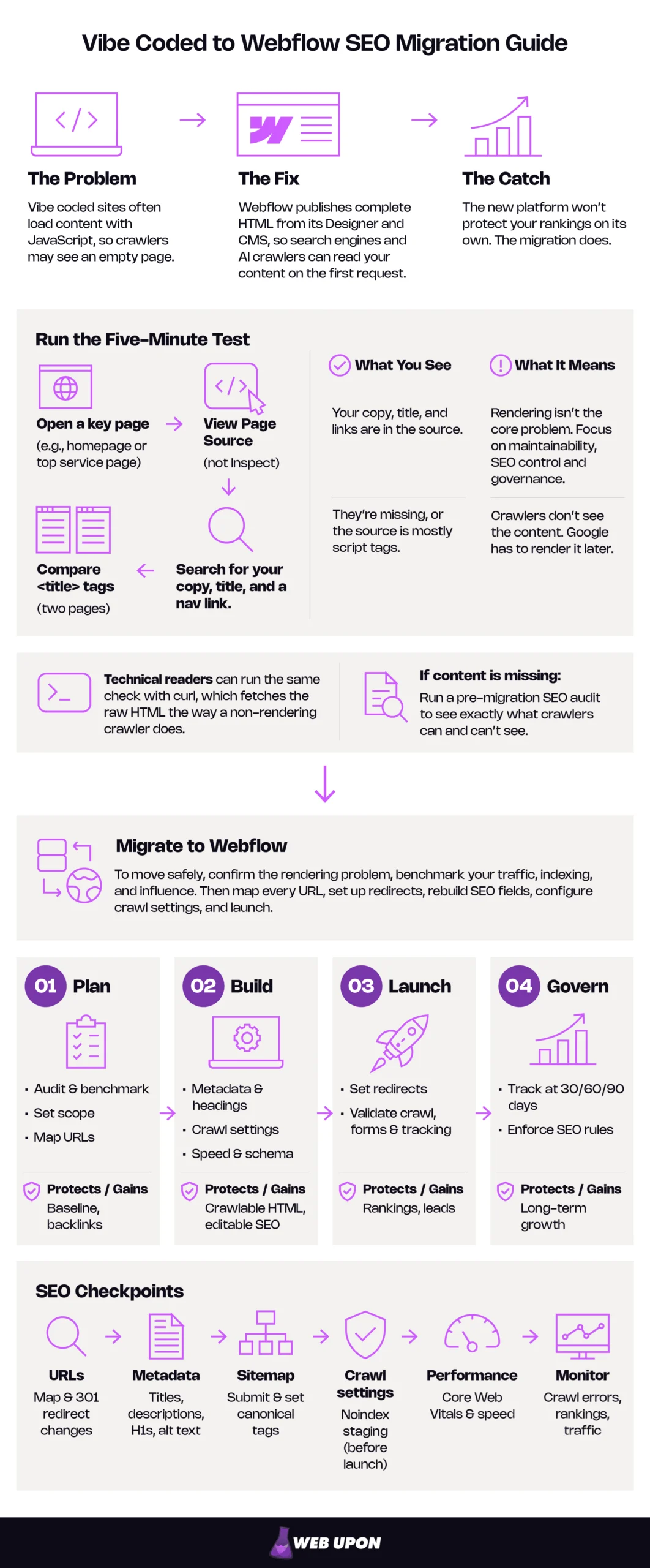
The Five-Minute Test
- Open a key page on your live site, such as your homepage or a top service page.
- Right-click and choose View Page Source, not Inspect. The source is what a crawler receives.
- Search the source for a sentence of your body copy, your page title, and a link from your navigation.
- Compare the <title> tag with a second page’s. If they match, every page is competing under one name.
| What You See | What It Means |
| Your copy, title, and links are in the source. | Rendering isn’t your core problem. The case for migrating rests on maintainability, SEO control, and governance. |
| They’re missing, or the source is mostly script tags. | Crawlers that don’t run JavaScript see an empty page, and Google has to render it in a later, less reliable step. |
Technical readers can run the same check with curl, which fetches the raw HTML the way a non-rendering crawler does.
If your content was missing, a pre-migration SEO audit shows exactly what crawlers can and can’t see on every page, before anything is rebuilt.
To move safely: Confirm the rendering problem, and benchmark your traffic, indexing, and performance. Then map every existing URL to its Webflow destination, and 301 redirect anything that changes. Rebuild titles, meta descriptions, one H1 per page, and image alt text in Webflow’s native SEO fields. Set up the sitemap, canonical tags, and staging-site indexing before launch. Put redirects live the moment DNS switches, test your forms and tracking, then watch crawl errors for 72 hours and rankings at 30, 60, and 90 days.
| Phase | What You Do | What It Protects or Gains |
| Phase 1: Plan | Diagnose SEO debt, benchmark, set scope, map every URL. | Your baseline and backlink equity |
| Phase 2: Build | Rebuild metadata and headings, configure crawl settings, optimize speed, add schema. | Crawlable HTML and SEO your team can edit |
| Phase 3: Launch | Redirects live before DNS; validate crawl, forms, and tracking in the first 72 hours. | Rankings and inbound lead flow |
| Phase 4: Govern | Track at 30, 60, and 90 days; enforce SEO rules in CMS templates. | Compounding growth with no new technical debt |
Done in this order, the move should leave you with pages Google and AI assistants can read, SEO your marketing team owns, intact link equity, and a recovery you can measure.
Key Takeaways
- Test before you worry. If View Page Source is missing your copy, title, and links, Google has to render the page in a later, less reliable step, and the major AI crawlers, including OpenAI’s and Anthropic’s, don’t run JavaScript at all.
- Plan before you build: benchmark indexing, clicks, backlinks, and field Core Web Vitals, then map every old URL. Permanent 301 redirects don’t cost PageRank; missed ones cost the page, and hash routes can’t be redirected at all.
- Build on staging with unique titles and meta descriptions, one H1 per page, CMS collections for repeatable content, a set global canonical, and Webflow’s noindex toggle rather than robots.txt. Treat schema as a supporting signal; Google’s AI features require no special markup.
- Launch in order: redirects published before DNS switches, forms and tracking tested in the first hour, and your own crawler (not Search Console alone) watching the first 72 hours.
- Govern for the long run: expect temporary ranking fluctuation, keep redirects for at least a year, compare against your baseline at 30, 60, and 90 days, and build SEO rules into every CMS template.
Before touching a single setting, look at what a crawler actually receives from an AI-built site, because that’s where the fix begins.
Why Your AI-Generated Site Is a Ticking SEO Time Bomb (and How Webflow Defuses It)
Your site works for people. Visitors see the headline, tap the buttons, and fill in the forms. Crawlers may be receiving something very different, and that gap is where rankings go missing.
Uncovering the Hidden Indexing Disasters Buried Inside Vibe Coded Builds
Open the page source of many AI-built sites and you’ll find almost nothing: a title, a few script tags, and one empty container waiting to be filled. That’s client-side rendering: the server sends a near-empty page, and the browser builds the content with JavaScript once the page arrives. AI app builders often default to it because it’s quick to generate and feels instant to visitors. Not all of them do, which is why you test before you worry.
Google does run JavaScript, just later and less reliably than it reads plain HTML. Its JavaScript SEO basics describe rendering as a separate, queued step where a page can wait a few seconds or longer, and client-side builds tend to fail it in the same few ways:
- A script error or a blocked file can stop Google from rendering all of your content.
- Menus built from click handlers instead of real links go unfollowed.
- Every address answers “OK,” even for pages that don’t exist, so Google may treat them as soft 404s.
- All pages inherit the one title and description written into a single shared HTML file.
AI assistants are a harder audience still. Not all bots can run JavaScript, and many AI crawlers read only the raw HTML.
| Crawler | Runs JavaScript? | What It Sees |
| Googlebot | Yes, often after a delay | The rendered page, if rendering succeeds |
| Google’s AI features (AI Overviews, AI Mode) | Draw on Google’s index | Whatever Googlebot managed to render |
| Major AI bots, such as OpenAI’s and Anthropic’s | No | Only the raw HTML, which may be an empty shell |
This guide uses ghost indexing as shorthand for the result: pages that look live to visitors but that search engines can’t properly read, index, or tell apart. It isn’t an official Google term, but the problem it describes leaves recognizable fingerprints in Search Console.
| What You See in Search Console | What It Usually Means |
| Crawled – currently not indexed | Google fetched the page but found little worth indexing, often because the content never rendered. |
| Discovered – currently not indexed | Google found the URL but hasn’t crawled it yet. |
| Duplicate, Google chose different canonical than user | Pages look identical to Google, often because they share one shell and title. |
| Soft 404 | A page returns “OK” but looks empty or missing. |
| Page indexed without content | Google indexed the URL but couldn’t read its content; inspect the page to see what Google received. |
| Many pages sharing one title in search results | Metadata is set once for the whole site, not per page. |
The cost is easy to miss, because it never shows up as a drop in your analytics. An unindexed service page earns no impressions, so no clicks, so no form fills, however good it is. The loss arrives as silence: inquiries that never come.
Fortunately, the cause is architectural, so the fix is too.
Solving the Client-Side Rendering Problem with Webflow’s Architecture
Webflow works the other way around. Pages built in its Designer and CMS are published as pre-rendered, static HTML and served from a global CDN, so the first response a crawler receives already holds the headline, the copy, the links, and the metadata. There’s no rendering step to wait for, and none to fail.
Picture the same service page twice. The client-side build’s first response is an empty <div> and a script tag pointing to a JavaScript bundle. Webflow’s first response is the page itself. Server-side rendering reaches a similar result by building each page on request; static publishing builds it once, when you hit publish.
| Factors | Vibe Coded Client-Side Build | Webflow-Published Page |
| First HTML response | Near-empty shell and script tags | Complete content and links |
| What AI crawlers see | Little or nothing | The full page |
| Titles per page | Often one shared title | Unique, set per page or per CMS item |
| Who edits SEO fields | A developer, through code | Your marketing team, in native settings |
One caveat. Custom code embeds, third-party widgets, code-based components with server rendering turned off or with data loaded in the browser, and code-based apps hosted alongside your site can bring client-side rendering back. A pricing table injected by a script is still invisible to a crawler that doesn’t run scripts, even on Webflow. After moving a vibe coded site to Webflow, rerun the five-minute test, especially on pages with custom code. This time, your words should be sitting in the source.
Knowing Webflow can fix the rendering problem isn’t the same as migrating safely. That starts with a plan.
Phase 1: Building Your Strategic Pre-Migration SEO Blueprint
Everything in Phase 1 happens before anyone opens Webflow, and it’s where most losses in a vibe coded to Webflow migration are prevented. Treat the project as an SEO migration from day one, not a design project with SEO added at the end.
Diagnosing Your Current SEO Debt Before You Touch Webflow
Who does this: You, with an SEO specialist for the rendering comparison
Start with a spreadsheet and an export button. A pre-migration SEO audit covers this ground in depth, but the goal is the same if you do it yourself: a written record of what you have before anything changes.
Crawl the current site with a desktop SEO crawler to surface orphaned pages, broken internal links, and missing meta tags. Run the crawl twice, once with JavaScript rendering off and once with it on. If word and link counts jump between the two, client-side rendering is your root problem, and now you have the evidence.
While the data is open, note what AI-generated code tends to get wrong: duplicate or blank titles, missing descriptions, pages with three H1s or none. Flag the URLs that carry rankings and backlinks, because those are the addresses your URL map must protect. Then decide what’s worth moving at all, using critical content audits to sort pages into migrate, merge, or retire.
Finally, measure performance from two angles. Lighthouse gives you lab scores from a simulated visit, which can’t measure INP because no one interacts with the page. Google’s page experience signals use field data from real visitors, reported as Core Web Vitals: LCP (how fast the main content loads), INP (how quickly the page responds), and CLS (how much the layout shifts). Save both.
| What to Capture | Tool | Why It Matters |
| Full URL list | Desktop SEO crawler and your current sitemap | The source list for every redirect |
| Indexed vs. not-indexed pages | Search Console Page indexing report | Shows what Google already trusts |
| Clicks and impressions per page | Search Console Performance export | Your traffic baseline |
| Top linked pages | Search Console Links report | Pages whose URLs carry backlink equity |
| Field Core Web Vitals | Search Console Core Web Vitals report | Real-user experience before the move |
| Lighthouse scores | Lighthouse | A lab benchmark to compare against |
| Conversions from organic traffic | Your analytics | The number leadership cares about most |
Export everything and store it somewhere other than the old site. Every later phase measures against this data, and some of it is hard to rebuild once the old setup is gone.
Once you know what’s broken, decide what actually needs to move.
Choosing Your Migration Scope by Site Type
Who does this: You and your developer
Not every AI-built site has to move in one piece. The right scope depends on what the site does, and choosing well can shrink the risk of the whole project.
| Site Type | What Moves to Webflow | What Can Stay in Code | Main SEO Risk |
| Marketing-only site | Everything | Nothing | Missing redirects for pages with backlinks |
| Product site with an app | Marketing pages, blog, pricing | The logged-in app, typically on a subdomain | App screens indexed by accident, or broken links between the two |
| Content-heavy site | Articles, restructured into CMS collections | Specialist tools or calculators, if needed | URL pattern changes across hundreds of posts |
For a product company, the cleanest route is often to migrate to Webflow in part: the marketing site moves, and engineering keeps the app on a subdomain such as app.yourdomain.com. Logged-in app pages generally shouldn’t be indexed anyway. Serving the app and the Webflow site from one domain, with the app at a path such as /app, means either rebuilding the app on Webflow’s code-based app hosting (supported frameworks only) or reverse-proxy routing. Both are expert territory, so bring in help before you commit to either.
With scope set, the most important planning job is protecting every URL that has earned traffic or links.
Mapping Your URL Architecture and Protecting Backlink Equity
Who does this: An SEO specialist (recommended)
Your redirect spreadsheet will be the least glamorous document in any Webflow migration, and the most valuable. Every URL that has earned a click or a link is an address Google already trusts. This redirect map decides whether that trust survives the move.
A 301 redirect is a permanent forwarding instruction: anyone who requests the old URL, human or crawler, is sent to the new one, and search engines transfer the old page’s signals. Google’s guidance on site moves with URL changes confirms permanent redirects don’t cost you PageRank. The risk lives in the redirects you miss. For more on how slug changes play out, see our guide to the SEO impact of changing URLs.
Give every old URL a Webflow destination. For high-authority pages, keep the exact slug wherever Webflow allows it; the safest redirect is the one you never need. Everything else gets a single-hop 301 to its closest equivalent. No chains (old page to interim page to new page), no loops, and no dumping unrelated pages on the homepage, which Google may treat as a soft 404.
| Old URL | New Webflow URL | Action | Backlinks | Priority |
| example.com/services/seo-audit | example.com/services/seo-audit | Keep slug | Many | High |
| example.com/Blog/Post?id=17 | example.com/blog/choosing-a-crm | 301 | Some | Medium |
| example.com/#/pricing | example.com/pricing | Rebuild as a real page | Few | High |
| example.com/spring-promo | None | Retire, or 301 to the closest match if linked | None | Low |
Webflow’s URLs follow their own conventions, so align your legacy patterns with them on purpose. CMS items live at /collection-slug/item-slug, optionally beneath a static parent folder, but per-item category segments can’t be reproduced. Check how any trailing-slash URLs resolve on the new site. Any pattern Webflow can’t reproduce needs a redirect.
| Legacy Pattern | Webflow Equivalent | Action |
| Nested category paths (/blog/category/sub/post) | /blog/post | 301 each, or use wildcard patterns where the structure is consistent. |
| Trailing slashes (/about/) | /about | Confirm each old version resolves in a single hop. |
| Uppercase URLs (/About-Us) | /about-us | 301 to the lowercase version. |
| Hash routes (/#/pricing) | /pricing | Rebuild as a real page; can’t be 301 redirected. |
| Query-string pages (/product?id=12) | /products/item-slug | 301 each to its new item page. |
Hash routes need a special note. Everything after the # stays in the browser and never reaches the server, so /#/pricing can’t be redirected: the server only sees a request for the homepage. The upside is that Google can’t reliably resolve fragment-based URLs, so those views were rarely indexed as separate pages anyway. Rebuilding them as real URLs is part of the cure.
With a baseline and a URL map in hand, you can start building in Webflow, this time with SEO designed in from the first page.
Phase 2: Laying Your SEO Foundations Inside Webflow
Everything in Phase 2 happens on the Webflow staging site, before a single visitor arrives. Mistakes here are cheap, which makes this the place to be thorough.
Reconstructing Metadata, Heading Hierarchy, and Content Structure in Webflow
Who does this: You or your marketing team (DIY-friendly)
Search for your site in Google and read down the results. If ten listings share one title, you’ve found what is often the biggest single win in the whole migration. Many client-side builds serve the same title and description on every route, so Google can’t tell your pricing page from your contact page.
In Webflow, each static page gets its own title and meta description in its native SEO settings. Write them page by page, starting with the URLs your baseline shows earning the most impressions. Then repair the heading structure, which AI-generated markup often scrambles:
Before (common in AI-generated markup)
- H1: Welcome
- H1: Our Services
- H4: Pricing
- H1: Contact Us
After (one H1, logical nesting)
- H1: Bookkeeping for Growing Agencies
- H2: Services
- H3: Monthly Bookkeeping
- H3: Tax Preparation
- H2: Pricing
- H2: Contact
- H2: Services
Vibe coded sites often bury copy inside components or data files. Rather than pasting it into static pages one at a time, move repeatable content such as articles, case studies, and team profiles into Webflow CMS collections, using CSV import to bring it across at scale (files up to 4 MB, with item limits set by your site plan). Collection templates then pull each item’s SEO title and meta description from its own fields, so one template produces hundreds of unique, accurate listings.
Two details finish the job. Rebuild navigation and in-copy links as real, crawlable links, restoring connections between related pages that the old build handled only through scripts. And carry every image’s alt text across, adding or improving it where it was missing or vague.
Great on-page SEO only matters if crawlers can find, and trust, each page.
Configuring Webflow’s Sitemap, Canonical, and Indexing Settings
Who does this: Your Webflow builder (DIY-friendly with care)
These settings take minutes and can quietly undo months of work if they’re wrong. Start by turning on Webflow’s auto-generated XML sitemap, so every migrated page is listed and ready to submit to Search Console at launch.
A canonical tag tells search engines which URL is the preferred version of a page. Webflow creates self-referencing canonicals from its global canonical URL setting, so fill it in before launch; without a canonical, search engines choose their own preferred URL. Static pages can override the global value. Never add a second canonical through custom code or a tag manager, because search engines may ignore conflicting tags.
A noindex tag asks search engines to keep a page out of their results. For utility and thin pages, use Webflow’s page-level Sitemap indexing toggle, which adds noindex and removes the page from your sitemap. Don’t use robots.txt for this: it blocks crawling but doesn’t remove indexed pages, and it hides the noindex tag from crawlers. Webflow’s guide to disabling search engine indexing covers each option.
Timing matters for staging. Webflow’s staging-indexing toggle works by publishing a robots.txt file that blocks the webflow.io subdomain, and blocking can’t remove pages already indexed. Disable staging indexing before the first preview link is shared.
Before launch, confirm these settings:
- Staging (webflow.io) indexing disabled
- Global canonical URL set to your primary domain, with no trailing slash
- Auto-generated sitemap enabled
- Utility and thin pages set to noindex with the page-level toggle
- Robots.txt never blocking a page that’s also marked noindex
- One canonical per page, with none added through custom code
Once crawlers can reach every page, make sure those pages load fast enough to keep both crawlers and visitors happy.
Optimizing Performance and Page Experience Signals Inside Webflow
Who does this: Your Webflow builder, with a speed specialist for verification
Asset migration is the natural moment to fix image weight: compress every image and convert it to WebP or AVIF on the way in, which Webflow supports natively. Size images before a CSV import, because images imported by URL don’t get Webflow’s responsive variants. Then use Webflow’s built-in performance features alongside its CDN-backed hosting: turn on minification for HTML, CSS, and JavaScript (each is a separate toggle), and consider per-page CSS once your custom code tests clean with it. Newly added inline images lazy-load by default, but background images don’t, so set above-the-fold hero images to load eagerly and keep background images light.
Webflow’s clean HTML and CSS usually give it a head start over heavier script-built pages. Keep that in proportion, though: page experience is one signal among many, and a few heavy third-party scripts can erase the advantage. Rerun Lighthouse against your baseline right after launch. Field Core Web Vitals take longer, because Search Console reports them at the 75th percentile of real visits over the previous 28 days, so allow about a month before Search Console fully reflects the new site. Post-migration speed audits confirm whether the new build matches or beats the old one on both measures.
Fill in this scorecard before and after launch; the targets are Google’s “good” thresholds:
| Metric | Pre-Migration | Post-Migration | Source |
| LCP (field; good: 2.5 s or less) | Search Console Core Web Vitals report | ||
| INP (field; good: 200 ms or less) | Search Console Core Web Vitals report | ||
| CLS (field; good: 0.1 or less) | Search Console Core Web Vitals report | ||
| Lighthouse performance score (lab) | Lighthouse |
Fast, crawlable pages are the foundation. Structured data adds a layer of clarity on top.
Implementing Schema Markup and Structured Data for AI Search Readiness
Who does this: Your developer or an SEO specialist
Structured data is code that labels what a page is about (an organization, an article, or a product, for example) using a vocabulary search engines share. JSON-LD is the usual format: a block of code in the page’s HTML that visitors never see. In Webflow, add it through page-level custom code. On CMS collection templates, populate it from collection fields so every item carries accurate markup automatically.
One rule carries over from everything above: schema must be in the published HTML. Structured data injected only by client-side JavaScript depends on Google’s rendering step and is invisible to crawlers that don’t run scripts, the same problem your content had.
Keep expectations realistic. Google’s guidance on AI features and your website says no special schema is needed to appear in AI Overviews or AI Mode, and any structured data must match what’s visible on the page. Treat schema as a supporting clarity signal. The real differentiator for AI search is content that sits in the raw HTML under clear headings, which is what the rest of this migration delivers.
| Business Model | Recommended Types | Google Rich Result Note |
| All sites | Organization, WebSite, BreadcrumbList | Breadcrumb is still supported (desktop results only) |
| Service or local business | LocalBusiness | Supports local business details |
| SaaS or publisher | Article or BlogPosting | Eligible for article features |
| E-commerce | Product | Eligible for product rich results |
| FAQ content | FAQPage | Valid markup, but no Google rich result since May 2026 |
Validate every implementation with the Schema Markup Validator, before and after launch. Use Google’s Rich Results Test only for types that still produce rich results, such as Article, Product, and Breadcrumb; Google stopped showing FAQ rich results on May 7, 2026, and retired its FAQ rich result documentation in June.
Everything so far happens on staging, where mistakes are free. Launch is where they get expensive.
Phase 3: Executing the Migration Without Destroying Your Search Rankings
Launch-day order matters. A missed redirect or a broken form costs you rankings and leads immediately, and both are preventable.
Implementing Your 301 Redirect Map Before You Flip DNS
Who does this: An SEO specialist (recommended)
The night before launch, your redirects should already be sitting in Webflow, waiting. Load them before DNS switches, so the first crawler to request an old URL is forwarded instead of meeting a dead end.
Plan around a few platform realities, covered in Webflow’s guide to setting up redirects:
- Webflow 301 redirects require a paid Site plan or paid Workspace and take effect when you publish.
- A path that still has a live Webflow page can’t be redirected until that page is deleted, drafted, or re-slugged (CMS items can also be archived or unpublished).
- Webflow recommends keeping redirects to around 1,000, because every rule is added to the site’s manifest.json, a file visitors’ browsers download. Large sites should lean on wildcard patterns.
- Bulk CSV import is available; back up existing redirects before importing.
Test every redirect with a crawler in list mode: each old URL should return a 301 and reach a live page in one hop, with no loops or chains. Keep redirects for at least a year, and indefinitely for URLs with valuable backlinks. Search Console’s Change of Address tool is needed only if your domain itself changes.
When the map runs to hundreds of URLs, or the site splits app and marketing pages, a professional SEO team can build and test it with you.
Launch-Day Sequence (order matters)
- Freeze content on the old site.
- Run and save a final crawl of every old URL.
- Import, verify, and publish your redirects.
- Confirm staging indexing is disabled and production is indexable.
- Switch DNS and verify SSL.
- Crawl the old URL list and confirm single-hop 301s that land on live pages.
- Spot-check your top pages in the raw HTML for content, title, and canonical.
- Submit the sitemap and inspect key URLs in Search Console.
- Test forms, analytics, and conversion events.
Once DNS switches, the clock starts. The next 72 hours decide whether problems stay small.
Validating Crawl Integrity in the First 72 Hours After Launch
Who does this: An SEO specialist, with you testing forms and tracking
Before anything else, send a real inquiry through your main contact form and watch where it lands. This is the window where your lead flow is most at risk, and also where it’s easiest to protect.
Submit your updated XML sitemap immediately, then make crawl errors your top SEO priority. Don’t wait for Search Console to report them: its indexing reports only reflect pages after Google recrawls them, so for the first 72 hours rely on your own crawler, URL Inspection live tests (which fetch the page in real time), and redirect spot checks.
- Hour 1: Submit a test lead through every form and confirm it reaches your CRM or inbox. Check that analytics and conversion tags fire. Spot-check your 10 highest-value redirects.
- Day 1: Crawl the full old URL list and fix any redirect that fails, chains, or loops. Run URL Inspection live tests on your top pages. Rerun the five-minute test; your content should now be in the source.
- By hour 72: Recrawl the new site for broken internal links. Confirm Google has read the sitemap. Compare organic landing-page traffic against your baseline, allowing for normal early variation.
Launch day ends the migration project, but not the SEO work.
Phase 4: Sustaining Long-Term SEO Growth with Post-Migration Controls
Measure the recovery first. Then lock in the habits that stop SEO debt from building up again.
Monitoring, Measuring, and Compounding Your SEO Recovery
Who does this: You or your marketing team
Expect some ranking movement after a vibe coded to Webflow move. Temporary fluctuation is normal while Google recrawls and reindexes, and medium-sized sites can take a few weeks or more to settle. What matters is whether your numbers drift back toward your baseline, and whether you catch problems early enough to fix them.
Confirm Search Console is verified for the live site and analytics is recording organic conversions, then set alerts so regressions find you. Search Console’s email notifications flag new indexing issues, and a scheduled crawl of your old URL list, weekly at first, catches redirects that break when someone later re-slugs or deletes a page.
For AI search, know what you can and can’t see. Google counts traffic from AI Overviews and AI Mode inside Search Console’s Performance report, under the “Web” search type. Search Console now also reports how often your pages appear in AI features, and which ones, after Google rolled those insights out to all websites on August 31, 2026. Referral traffic from AI assistants in your analytics is a useful emerging signal of visibility beyond Google; watch the trend rather than any single number.
| Window | What to Check | What’s Normal | Escalate If |
| First 72 hours | Redirects, crawl errors, forms, tracking | A few fixable errors | High-value URLs fail to redirect, or leads stop |
| Day 30 | Indexed pages, impressions, top-page rankings | Some movement as Google reprocesses URLs | Key pages aren’t indexed or impressions keep falling |
| Day 60 | Clicks, rankings, organic conversions | Trending back toward baseline | Losses concentrated on specific pages or sections |
| Day 90 | Full comparison against baseline | At or near baseline, often improving | Sustained decline with no clear cause |
Over time, the advantage compounds in ways no single ranking captures. Your team can publish faster, file fewer developer tickets, and stop shipping rendering regressions, while teams still stacking changes onto AI-generated code tend to keep adding to their technical debt.
Recovery proves the migration worked. Governance keeps it working.
Establishing Ongoing SEO Governance Inside Webflow’s CMS
Who does this: Your marketing team, with your Webflow builder setting up templates
Six months from now, someone on your team will publish a page at 4:55 on a Friday. Governance is what makes that page as sound as the ones you launched with.
Build the rules into the system, not into people’s memories. Every CMS collection gets SEO title and meta description fields that team members fill in as part of publishing. The template maps those fields to each page’s metadata.
Keep the Phase 2 indexing controls correct over time: staging indexing stays off, thin and utility pages use the page-level noindex toggle, and robots.txt is reserved for crawl management. Use the toggle rather than custom code for noindex, because Webflow keeps custom-code noindexed pages in its auto-generated sitemap, which sends search engines mixed signals. On paid Site plans, the same toggle exists for individual CMS items.
| Field | Rule | How Webflow Enforces It |
| SEO title | Required, unique, roughly 50-60 characters (a display guideline, not a Google limit) | Required field with a character limit |
| Meta description | Required, roughly 140-160 characters | Required field with a character limit |
| Image alt text | Required for every meaningful image | Alt text bound to a CMS field in the template, plus a publishing checklist |
| Heading structure | One H1, logical H2 and H3 nesting | H1 bound to the item name, rich text styled to start at H2 |
| Slug | Short, lowercase, never changed once published without a 301 | Slug field generated from the item name, redirect added in the same publish |
Governance also settles the question of AI going forward. The lesson isn’t to avoid AI. It’s to use AI inside a governed system with native SEO controls, where custom code is the exception rather than the foundation. That’s a durable fix for AI-generated website SEO, with one house rule: any custom code must pass the five-minute test before it goes live.
Put the phases together and the whole migration fits on a single page.
Your Vibe Coded to Webflow Migration Checklist
AI didn’t break your SEO; your site’s architecture and the absence of SEO governance did. Webflow fixes the architecture by publishing complete HTML and handing SEO control to your team, and an audit-first migration protects the rankings and links you’ve already earned. Diagnose first, migrate second, govern forever.
Phase 1: Plan
- Run the five-minute test on your key pages.
- Crawl the site with JavaScript rendering off and on, and compare the results.
- Export your baseline: URLs, indexing, clicks, top linked pages, Core Web Vitals, and organic conversions.
- Choose your scope: full move, marketing-only split, or CMS restructure.
- Map every old URL to its Webflow destination.
Phase 2: Build
- Write a unique title and meta description for every page.
- Fix heading structure to one H1 per page with logical nesting.
- Move repeatable content into CMS collections.
- Disable staging indexing, set the global canonical, and enable the sitemap.
- Compress images and add schema to the published HTML.
Phase 3: Launch
- Publish redirects before switching DNS.
- Test every form, tag, and conversion event on launch day.
- Monitor crawl errors with your own crawler for 72 hours.
Phase 4: Govern
- Compare results against your baseline at 30, 60, and 90 days.
- Enforce SEO fields and rules in every CMS template.
If your redirect map is large, your app and marketing pages are splitting, or organic leads fund the business, bring in help for your Webflow migration before launch rather than after.
Your next three steps:
- Run the five-minute test today.
- Capture your baseline using the table in Phase 1.
- If organic leads matter to your business, contact Web Upon before touching DNS. We’ll start with an audit-first plan that protects the rankings you’ve already earned.
Speed got your site built. Structure is what lets search engines and the customers behind them find it.