You click through a competitor’s new site and recognize your own homepage, down to the spacing under the hero. Or you’re six weeks into a Webflow build that still hasn’t published a single page.
Here’s the Webflow vs Squarespace verdict before any background.
- Choose Squarespace if speed, low maintenance, and a polished-enough look matter more than standing out. It suits solo consultants, early-stage brands, and content-light service businesses.
- Choose Webflow if your credibility depends on distinctive design and a growing, structured content library. It suits boutique agencies, design-led brands, and growth marketers.
- Decide by trajectory, not features. Ask where the brand needs to be in 18 months, and whether your team, or a partner, can run a visual development platform.
| Priority | Better fit | Why |
| Speed to launch | Squarespace | Templates, hosting, and editing work out of the box |
| Design differentiation | Webflow | Every element is styled with real CSS, not template sections |
| Content scale | Webflow | Custom CMS Collections that reference each other |
| Team skill | Squarespace | No CSS knowledge needed to build or edit |
| Cost predictability | Squarespace | One price per site, with no seats to count |
In short: Squarespace buys speed and predictability now. Webflow buys differentiation and content scale later, at the price of a real learning curve.
Key Takeaways
- The verdict: Squarespace fits brands that need to launch fast and stay low-maintenance; Webflow fits brands that compete on design and publish interlinked content at volume.
- The design ceiling is soft, then expensive. Squarespace allows CSS on every plan and JavaScript from Core up, but each workaround becomes maintenance debt.
- Content architecture is the sharpest divide. Squarespace uses fixed collection types; Webflow’s Premium plan supports 20,000 CMS items across 40 custom, cross-referencing Collections.
- Webflow has two learning curves. Building takes CSS literacy; editing through a Limited seat feels like a familiar CMS.
- Costs match at solo scale and split with people. One site runs about $25 a month on Webflow versus $19-29 on Squarespace; seats widen the gap as teams grow.
- Choose for the brand you’ll be in 18 months, and be honest about whether your team, or a partner, can run the platform.
The decision still feels risky, and one problem every growing brand eventually meets explains why.
The Core Tension: Why Choosing Between Webflow and Squarespace Feels Like a High-Stakes Gamble
The “Design Ceiling” Problem That Forces the Decision
It usually starts with a small request. The founder wants a case study image to overlap the section above it, or a scroll animation the template doesn’t offer. The designer opens the code panel, and the website quietly turns from a product into a project.
That’s the design ceiling: the point where the next design request costs more in workarounds than the platform saves you. On Squarespace, the ceiling is real but soft. Every plan includes a CSS editor, and Core and higher plans add JavaScript and site-wide code injection, according to Squarespace’s plan comparison, so almost anything is possible.
The cost shows up later. Each workaround is an undocumented patch laid over a template, and it can break when the template or editor updates. The ceiling arrives as maintenance debt long before it arrives as “impossible.”
A premium brand pays a quieter price, too. Visitors judge a site’s visual appeal within about 50 milliseconds, according to a 2006 study in Behaviour & Information Technology. A prospect who recognizes your layout from three other sites reads “affordable,” not “exceptional.” In practice, rebuilding later usually costs more than building right the first time.
Webflow removes the ceiling, then hands you a new worry. If you can build anything, someone on your team has to know how.
What This Comparison Actually Means for Non-Developers
Neither platform eliminates technical skill. Each relocates it.
Squarespace removes developer dependency by limiting what you can ask for. Its product team makes the technical decisions, and you choose from the results. Webflow takes the opposite route, letting designers do visually what front-end developers do in code.
So the real question isn’t which tool has more features. It’s where you want the skill to live: inside Squarespace’s guardrails or inside your own team.
That turns “design freedom” and “simplicity” into business variables, not interface preferences. Freedom is worth paying for when design affects pricing power or conversion. Simplicity is worth protecting when your team’s hours are better spent on clients than on CSS.
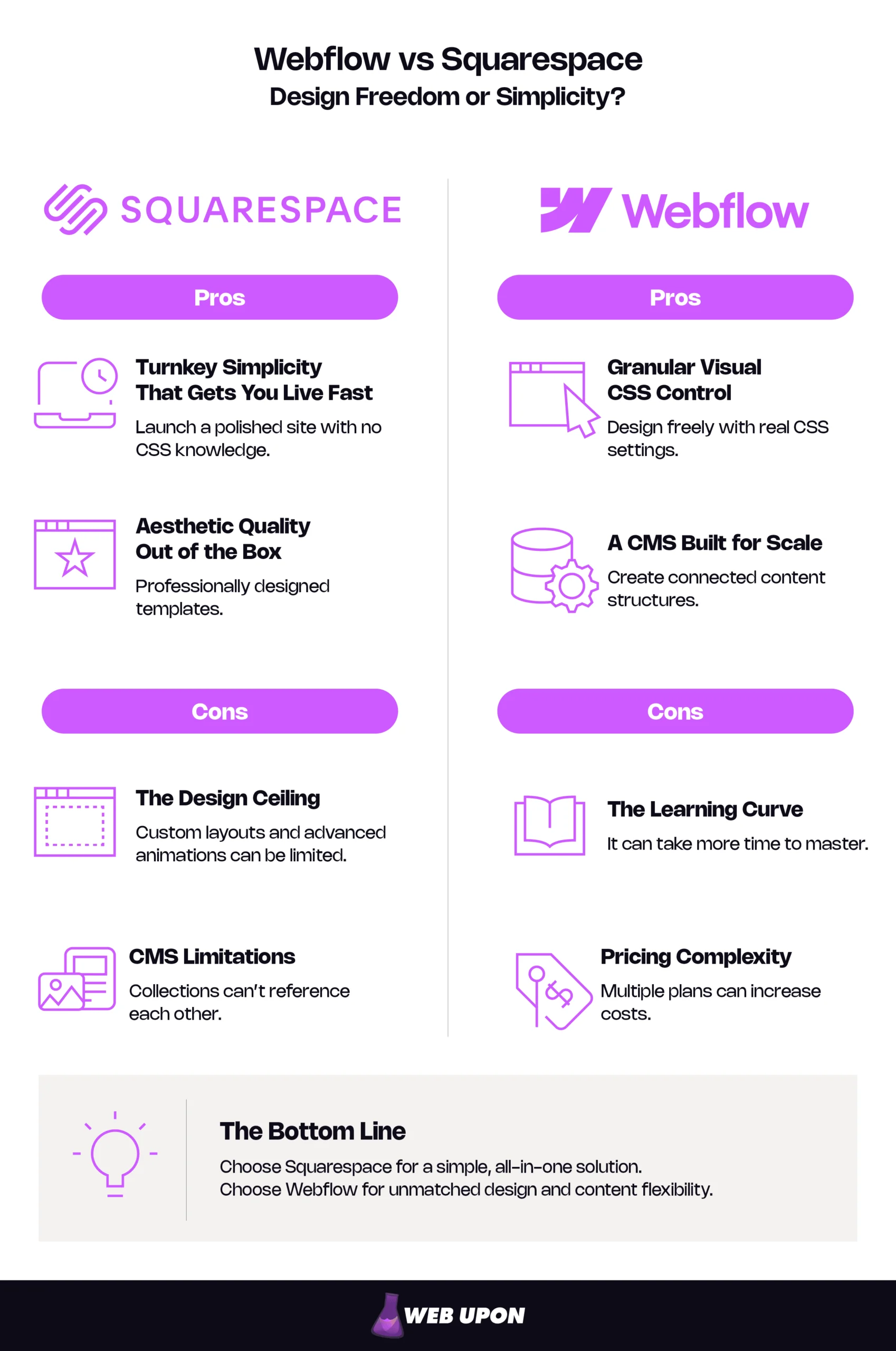
Squarespace: The Pros and Cons of Choosing Simplicity Over Control
Pro: Turnkey Simplicity That Gets You Live Fast
Pick a template, swap in your copy and images, and connect a domain. In practice, a content-ready service site of five to eight pages launches in days to two weeks, and most of that time goes to writing.
The drag-and-drop editor, Fluid Engine, lets non-designers move blocks on a grid without breaking the layout. Day-to-day updates rarely need a designer at all.
Pricing is just as predictable. Every plan includes hosting, unlimited bandwidth, SSL, and 24/7 support, and annual plans include a free domain for the first year.
Basic costs $19 a month billed annually and allows two contributors. Core, at $29, adds unlimited contributors and full custom code. There are no seats to count and no separate hosting bill.
Pro: Aesthetic Quality That Satisfies Most Brand Standards Out of the Box
Squarespace templates are professionally designed and built to work on mobile before you touch them. For service businesses, portfolios, and early-stage brands, that’s often enough.
The guardrails matter more than they look. Site-wide style settings control fonts, colors, and spacing in one place, so nobody accidentally sets three heading fonts on one page. For a brand that isn’t yet competing on design, those limits protect quality.
Con: The Design Ceiling That Punishes Growth
The same guardrails start to pinch as ambition grows. Requests that typically hit the ceiling include:
- Custom grid layouts that break out of the section structure, like asymmetric editorial grids or images that cross section boundaries
- Sequenced, scroll-driven motion, since Squarespace offers site-wide animation options for how content enters the page rather than timeline-based interaction design
- Non-standard navigation, like content-rich mega menus or full-screen menu transitions, which usually need injected code
These Squarespace limitations feed the “Squarespace look” problem. Template customization changes colors and fonts, but popular templates appear on many sites, so the structure still feels familiar.
There’s a quieter catch. Fluid Engine works on page sections, but blog posts still use Squarespace’s older classic editor. The content a growth marketer publishes most often gets the least layout freedom.
Con: CMS Limitations That Restrict Content-Driven Strategies
Picture an agency with forty case studies. Each one should link to the service it showcases and the people who delivered it. Each service page should list its work, and each team bio should list that person’s projects.
Squarespace organizes content into fixed collection types, such as blog, portfolio, events, and store, each with set fields. You can tag posts and filter summary blocks by category. But one collection can’t reference another, so service pages and team bios don’t know which case studies belong to them.
The first ten case studies are manageable by hand. By the fortieth, cross-links drift, related-work sections go stale, and the simple platform needs a weekly maintenance ritual. The Squarespace Help Center’s blogging guide explains how blog pages and posts are structured.
| Squarespace Pros | Squarespace Cons |
| Launches in days with no CSS knowledge | Workarounds turn into maintenance debt |
| Predictable pricing with hosting included | Collections can’t reference each other |
| Guardrails that protect design quality | Blog posts still use the classic editor |
Webflow was built to remove exactly these ceilings. It brings costs of its own.
Webflow: The Pros and Cons of Choosing Design Freedom Over Convenience
Pro: Granular Visual CSS Control Without Writing Code
Open the Webflow Designer and the panels look like a design tool. Underneath, every setting is a real CSS property, adjustable on any element.
Three terms do most of the work. The box model is how an element’s content, padding, border, and margin stack to set its size.
Flexbox arranges items in a row or column and shares out the space between them. Breakpoints are the screen widths where a responsive design adapts, such as tablet or phone; in Webflow, styles set on desktop cascade to the other breakpoints unless you override them.
That control means there’s practically no visual ceiling. The limit moves from the platform to your team’s CSS skill, with custom code still needed for app-like features.
Classes are the real advantage. Webflow styles elements with reusable classes and variables, so changing one class updates every button or card that uses it. Without a naming plan, though, class sprawl builds fast, and the site becomes harder to edit than the template it replaced.
Custom interactions are native, too. Webflow’s newer interactions editor runs on GSAP, a professional JavaScript animation library, on every site plan at no extra cost. GSAP itself, including its formerly paid plugins, has been free since April 2025. Scroll-triggered sequences and micro-animations don’t require a front-end developer.
Pro: A CMS Built for Dynamic, Scalable Content Architecture
Return to those forty case studies. In Webflow, you’d build three CMS Collections: Case Studies, Services, and Team Members.
Each case study gets a reference field pointing to its service and a multi-reference field pointing to its team. Each service page then lists only its own case studies, and each bio lists only that person’s projects. Publish one case study, and three pages update themselves.
That structure powers growing editorial sites, resource libraries, and multi-page content strategies. The Premium site plan includes 20,000 CMS items across up to 40 Collections, shared across the whole site.
Most agency and marketing sites rarely come close. Webflow University’s CMS basics lesson walks through the setup.
One fair caveat: Webflow retired its native memberships feature, User Accounts, on January 29, 2026. Gated client portals now need a third-party app, while Squarespace still sells memberships natively on every plan.
Con: The Learning Curve That Can Paralyze Execution
The Webflow learning curve is steep because the interface assumes you understand the box model, flexbox, and positioning. A marketer who launched a Squarespace site in a week may need several weeks to build confidently in Webflow.
The bigger risk is build paralysis: teams polishing their setup for weeks before publishing a single page.
There are really two learning curves. Building and styling pages takes CSS literacy. Editing content on a finished site, through a Limited seat with a content-editing role, feels much closer to a familiar CMS.
Smart teams respect that split. They hire or partner for the build, then train marketers only on editing. A partner like Web Upon can take the steep part off your plate.
Con: Pricing Complexity and Cost Escalation at Scale
Webflow pricing has three layers: a Site plan for each published site, a Workspace plan for the people who build, and seats. Each Workspace includes one Full seat for its owner; extra Full seats cost $39 a month and Limited seats $15, billed annually.
CMS items rarely drive the bill now, since Webflow removed CMS item add-ons in its May 2026 plan update. Seats and add-ons, such as extra bandwidth, do. A common mistake is buying Full seats for writers who only need Limited ones.
Check the official Webflow pricing and Squarespace pricing pages before you budget.
Pricing as of November 2026:
| Scenario | Webflow | Squarespace |
| Solo operator: one site with a blog | Premium site plan $25 + free Starter Workspace = $25 | Basic $19 or Core $29 = $19-29 |
| Small marketing team: 1 designer, 3 writers | Premium $25 + Core Workspace $19 + 3 Limited seats $45 = $89 | Core with unlimited contributors = $29 |
| Agency: 10 client sites, 3 designers | Agency Workspace $35 + 2 Full seats $78 + 10 Premium site plans $250 (often billed to clients) = $363 | 10 Core plans = $290 |
Totals exclude domains, eCommerce plans, bandwidth add-ons, and third-party apps. Monthly billing costs more on both platforms.
At solo scale the costs are nearly identical, and Webflow can even be cheaper than Squarespace Core. The gap opens with people, not pages.
| Webflow Pros | Webflow Cons |
| Real CSS control with practically no visual ceiling | Steep learning curve for building and styling |
| Relational CMS Collections that scale | Layered pricing across sites, Workspaces, and seats |
| Native GSAP-powered interactions | No native memberships since January 2026 |
With both profiles laid out, here’s how the platforms compare directly.
Head-to-Head: Design Capabilities, CMS Functionality, and Ease of Use Compared
Design Tools and Customization Potential Side by Side
| Capability | Squarespace | Webflow |
| Layout | Drag-and-drop grid within template sections | Full CSS layout on any element |
| Interactions | Site-wide animation options | Timeline, scroll, and trigger-based interactions |
| Typography | Global font and size presets | Class-level type styles and variables |
| Responsive control | Separate desktop and mobile layouts in Fluid Engine areas | Styles set per breakpoint, cascading from desktop |
| Custom code | CSS on all plans; JavaScript from Core up | Custom code on paid site plans |
Squarespace can reach many of these effects with custom code, but each becomes a patch someone has to maintain. In Webflow, they’re native settings.
CMS and Content Management: Flexibility vs. Predictability
The Webflow CMS vs Squarespace question comes down to who publishes, how often, and how much structure they need.
| Dimension | Squarespace | Webflow |
| Content structure | Fixed collection types with set fields | Custom Collections with fields you define |
| Relationships | Tags and categories only | Reference and multi-reference fields |
| Scale | No published cap on blog posts | 20,000 items across 40 Collections on Premium |
| Publishing | Simple post editor with scheduling | Per-item, bulk, and scheduled publishing (not on Starter or Basic) |
| Best for | A few people posting on a steady rhythm | Teams publishing interlinked content at volume |
If two people publish a weekly blog post, Squarespace’s simple editor is hard to beat. If a team publishes case studies, guides, and service pages that must link to each other, Webflow can save hours every month.
Ease of Use and User Interface: Who Each Platform Is Actually Built For
Squarespace’s onboarding feels like setting up a new phone. Webflow’s feels like learning a professional tool, because it is one.
Team makeup should drive the choice more than feature lists. These ranges reflect typical project experience, not formal benchmarks.
| Team type | Squarespace: Time to first publish | Webflow: Time to first publish |
| Solo non-designer | Days | Several weeks from scratch; faster from a template |
| In-house marketing team | Days; editors productive within hours | Editors productive in a day or two on a finished site; building takes weeks |
| Design-led agency | Days, until the first ambitious brief | Days for CSS-literate designers; real speed after the first reusable system |
Neither platform removes technical input entirely. You’ll still need help for custom integrations, gated content, and migrations that involve redirects.
Use Cases and Recommendations: Matching the Platform to the Business Reality
When Squarespace Is the Right Strategic Choice
Choose Squarespace if you’re a solo consultant, an early-stage startup, or a service business with a handful of pages. It’s also the stronger choice for creators who want memberships or courses built in.
In these cases, speed to market beats customization. A clean template site that launches this month is worth more than a custom site that launches next quarter.
And if you haven’t hit the design ceiling yet, Squarespace’s mix of good looks and easy editing is hard to beat.
When Webflow Is the Right Strategic Choice
Choose Webflow if you’re a boutique agency, a design-led brand, or a growth marketer running a real content program. Here, design flexibility and content structure directly shape conversion and credibility.
So is Webflow worth it? For these teams, usually yes. The cost is front-loaded, and the speed is back-loaded.
Once Collections, classes, and components exist, a new landing page takes assembly time, not build time. On Squarespace, page fifty costs roughly what page five did.
That compounding pays off most when it’s paired with a clear content strategy, so every new piece strengthens the structure.
If this describes your team but you lack in-house Webflow skills, see how Web Upon approaches web design and development.
The Honest Verdict: Design Freedom vs. Simplicity
Answer each question yes or no:
- Will your brand need to compete on design within 18 months?
- Will you publish content that needs to cross-link, like case studies, services, or locations?
- Will you have more than 50 content items within a year?
- Does someone on your team understand CSS basics, or do you have a partner who does?
- Can you invest several weeks in a build before launch?
- Have you already used custom code to work around a template?
- Would a rebuild in two years cost more than building properly now?
How to score it: Five or more yes answers point to Webflow. Two or fewer point to Squarespace. Three or four? Start on Squarespace with a planned migration date, or build on Webflow with a partner.
Making the Move: Next Steps for Your Brand
The Webflow vs Squarespace verdict holds: Squarespace for speed and simplicity, Webflow for differentiation and content scale. Choose for the brand you’ll be in 18 months, not the one you are today. Neither platform is the wrong bet; the expensive mistake is choosing either one for the wrong moment.
If you’re staying on Squarespace, set a trigger to revisit. Watch for three signs: paying for code to fix a layout, needing content that cross-links, or spotting a competitor’s site that looks like yours.
If you’re moving from Squarespace to Webflow, plan the migration before the design. Map every URL to a 301 redirect, re-upload images, rewire forms and integrations, and freeze content during cutover. Our SEO tips for migrating from Squarespace to Webflow walk through each step.
Want Webflow’s design freedom without the learning-curve risk? Contact Web Upon to plan your build.