A migration from Shopify to WordPress shouldn’t cost you rankings and organic revenue. When stores lose organic traffic in a move like this, it is almost never the platform switch itself that does the damage — it is a handful of skipped steps that leave Google guessing about where your pages went. Rankings live in Google’s index, attached to specific URLs, and a migration changes those URLs. Do the work that tells Google exactly where the value moved, and your rankings follow your content.
| SEO signals | What Google sees in the migration | SEO risk if mishandled |
| URLs | New addresses for pages it already ranked | Stranded link equity, 404 errors, lost rankings and revenue |
| Metadata | Titles and descriptions may have changed | Diluted relevance, falling click-through rates |
| Schema | Structured data rebuilt from scratch | Lost rich results — stars, prices, breadcrumbs |
| Internal links | An entirely new link graph | Wasted crawl budget, orphaned pages |
Four things decide which outcome you get: a complete pre-migration audit and URL map, clean 301 redirects, faithful transfer of metadata and schema, and a disciplined post-launch recovery protocol.
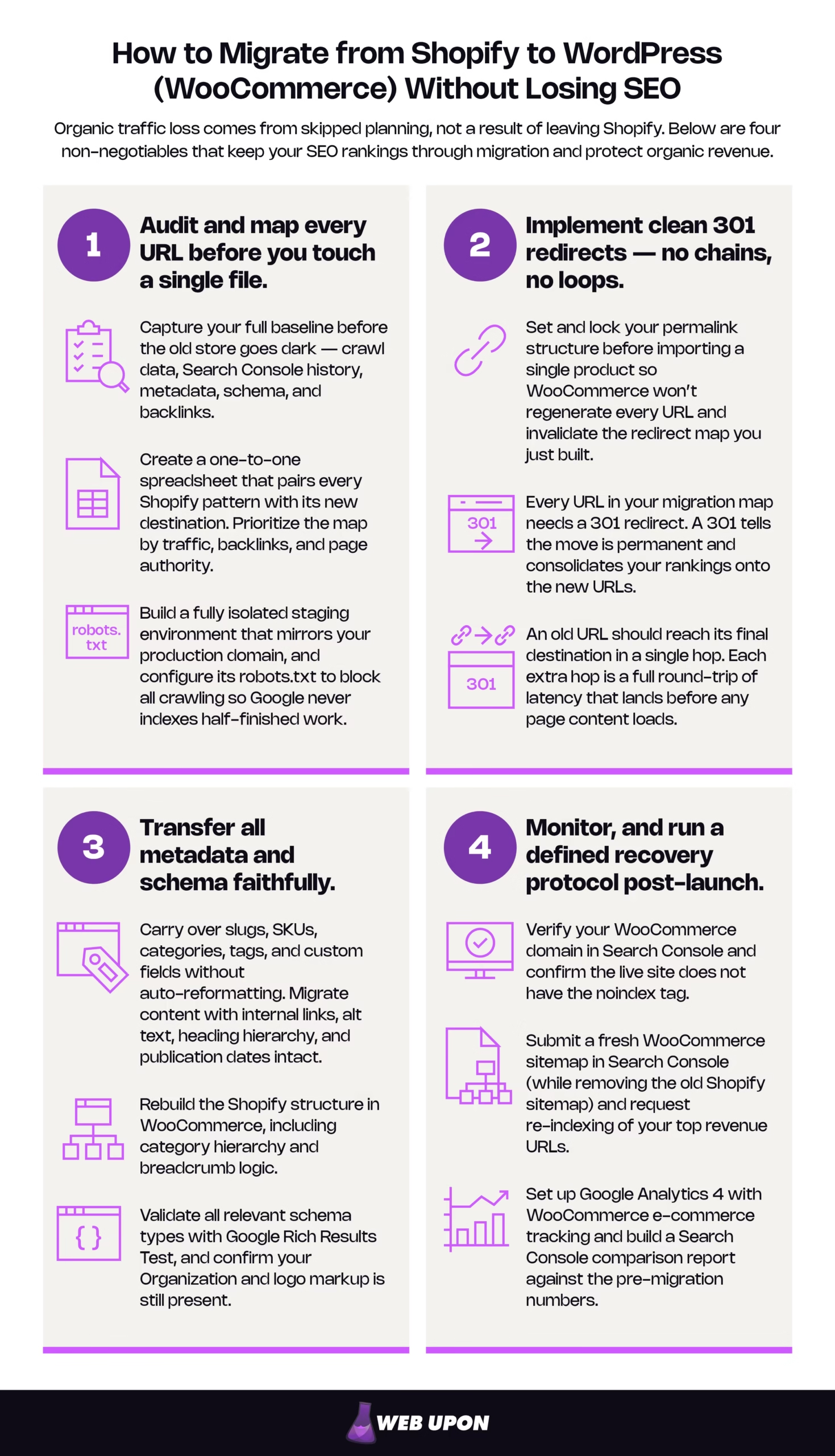
How to keep your rankings through Shopify-to-WordPress migration:
- Audit and map — capture every URL, ranking, and schema type while the old store is live.
- Clean 301s — one hop each, no loops, held in place for the long term.
- Metadata and schema — transferred faithfully, validated, and reconciled.
- Monitor and recover — baseline, triage, and a 90-day reinforcement plan.
Everything below is how to execute those four, in order. The payoff is an SEO capability upgrade: WooCommerce’s open architecture hands you full control of URLs, redirects, Core Web Vitals levers, and richer structured data than a closed platform allowed.
Building Your Pre-Migration SEO Foundation Before Touching a Single File
The difference between a disaster and a clean migration is everything you do before launch. The mindset is simple: measure and map everything now, because you cannot recover data you never captured.
Conducting a Full SEO Audit of Your Existing Shopify Store
The capture is one-directional. Once the old store is gone, this data is gone with it, so pull all of it while Shopify is still indexed and serving traffic.
- Crawl the entire store with a tool like Screaming Frog to capture every indexed URL.
- Export the full 16-month performance window from Google Search Console — pages, positions, clicks, and impressions.
- Document every meta title, meta description, and canonical tag as your metadata baseline.
- Inventory all existing schema markup (Product, Review, Breadcrumb, Organization).
- Rank your pages by organic traffic, backlink count, and conversion rate to prioritize what gets mapped first.
- Export your full backlink profile via a tool such as Ahrefs or SEMrush, so you know which external links point at URLs about to change.
This baseline is the only thing that lets you tell, three weeks after launch, whether a ranking dip is ordinary re-crawl noise or a genuine regression. You cannot diagnose against a benchmark you never took.
Creating a Comprehensive URL Mapping Document
Your URL map is the single most important artifact in the migration. It accounts for every Shopify URL pattern — /products/, /collections/, /pages/, and /blogs/ — and pairs each with its new WooCommerce destination.
The specifics matter here, because Shopify hard-codes its prefixes and will not let you remove them: products always live under /products/, collections under /collections/, blog posts under /blogs/[blog]/[post], and static pages under /pages/. WooCommerce, by default, uses the singular /product/ and /product-category/. Two traps deserve to be called out before you build a single rule. First, some Shopify themes expose the same product at /collections/[category]/products/[slug] even though the canonical version is the bare /products/[slug] — always map from the canonical, or you build redirect chains on day one. Second, /collections/all, faceted collection URLs, and tag pages often have no clean WooCommerce equivalent and need a deliberate decision rather than a default: redirect each to its closest category, or to the shop root.
| Shopify URL pattern | WooCommerce equivalent | Note |
| /products/[slug] | /product/[slug] | Preserve the slug for a clean 1:1 redirect |
| /collections/[slug] | /product-category/[slug] | Map to the closest matching category |
| /collections/[cat]/products/[slug] | /product/[slug] | Map from the canonical product URL, not the collection path |
| /collections/all | /shop/ | No direct equivalent — send to the shop root |
| /pages/[slug] | /[slug] | Static pages |
| /blogs/[blog]/[post] | /blog/[post] | Preserve publish dates for freshness signals |
One more discipline that silently wrecks otherwise-good maps: /page and /page/ are different URLs, and so are differing letter cases. Pick one trailing-slash and casing convention and enforce it site-wide, or you spawn duplicate paths and canonical conflicts that undo the mapping effort. Build the whole thing in a spreadsheet as a one-to-one matrix your developers can implement without interpretation, and prioritize the rows by page authority, backlinks, and current traffic.
Choosing and Configuring Your WooCommerce Hosting and Staging Environment
Judge hosting by capability, not by brand. What you want is a managed WooCommerce environment with server-side caching, a content delivery network, and proper staging support — infrastructure that matches or exceeds the CDN-backed performance Shopify handled for you invisibly. Those capabilities feed directly into Core Web Vitals, which are a confirmed, if lightweight, Google ranking signal.
Build a fully isolated staging environment that mirrors your production domain, and configure its robots.txt to block all crawling so Google never indexes half-finished work. Then benchmark staging speed against your live Shopify store and resolve regressions before launch, not after.
The most common indexation disaster in a WordPress migration hides right here. Teams ship the staging site’s “discourage search engines” setting straight into production and quietly deindex the entire new store — or they leave staging crawlable and let Google index the half-built version. Make “remove the staging noindex and confirm production is crawlable” an explicit, checked line in the launch runbook, never an assumption. When you are ready to tune performance in earnest, our Shopify to WordPress speed optimization work picks up exactly here.
Technical SEO Configuration: Permalinks, Redirects, and Crawl Architecture
With the audit, map, and staging environment in place, you can configure the technical layer that makes or breaks the launch.
Configuring WooCommerce Permalinks for Maximum SEO Preservation
Set and lock your permalink structure first, before importing a single product. This is order-of-operations, not preference: if you import content and then change the permalink base, WooCommerce regenerates every URL and instantly invalidates the redirect map you just built.
In WordPress, Settings → Permalinks is where you choose a structure that most closely mirrors your Shopify patterns. The one option to rule out immediately is the plain /?p=123 style — it carries no keywords, reads as gibberish to humans, and has no place on a live store.
| Permalink option | Example | SEO consideration | Best fit |
| Plain | example.com/?p=123 | No keywords, not human-readable | Never, for a live store |
| Default product base | /product/blue-widget/ | Clean and keyword-bearing | Most stores |
| /shop/ base | /shop/blue-widget/ | Clean, adds a shop segment | When it mirrors your old paths |
| Custom base | /store/blue-widget/ | Flexible, must match the redirect map | When replicating a specific Shopify structure |
Configure the product-category base to align with your mapping document before any content is imported, and lock it in. Permalinks are the foundation the rest of the technical configuration sits on.
Implementing a Bulletproof 301 Redirect Strategy
Redirects are how you tell Google the move is permanent. For every URL in your map, you want a 301 — and understanding why keeps you from the mistake that stalls recovery for weeks.
301 vs. 302: get this right or delay your recovery. A 301 tells Google the move is permanent, so it makes the new URL canonical and consolidates your rankings onto it. A 302 says “temporary,” so Google keeps the old URL indexed and waits for it to return. For a permanent migration, a 302 sends the wrong signal and stalls re-indexation of your new structure. Use a 301 for every migration redirect. Reserve 302s for genuinely temporary moves.
You have two implementation paths. DIY operators can use the Redirection plugin, which manages rules from inside WordPress. Teams with development resources can implement redirects at the server level via .htaccess (Apache) or Nginx configuration, which is faster and more reliable at scale. Whichever you choose, map every Shopify collection to its WooCommerce category, handle the awkward cases — /collections/all, /cart, /checkout, /account — with deliberate custom logic, and preserve query parameters where they carry meaning. Permanent redirects are the signal Google uses to make your new URLs canonical.
Two rules protect the equity you are transferring. First, flatten every chain: an old URL should reach its final destination in a single hop, never old → interim → final. Each extra hop is a full round-trip of latency that lands before any page content loads, so chains degrade Largest Contentful Paint (LCP) at the same time they waste crawl budget — a redirect problem and a speed problem in one. Test every rule with the Screaming Frog redirect checker or httpstatus.io before launch. Second, keep the redirects in place for at least a year, and in practice indefinitely for any URL that ever earned links or traffic. Backlinks update slowly, and pulling redirects early hands back the signals you worked to transfer.
Migrating and Reconciling All SEO Metadata
Use a migration plugin — Cart2Cart, LitExtension, or WP All Import are common choices — to move product titles, descriptions, and metadata, then audit the result against your pre-migration baseline. Plugins introduce corruption, and the most common kind is silent: character-encoding drift, where smart quotes, ampersands, and accented characters arrive as mojibake (’, &) in your titles and descriptions. It passes a casual glance because most pages look fine, so audit a deliberate sample across product, category, and blog templates specifically for encoding.
Install and configure an SEO plugin such as Yoast SEO or Rank Math immediately, and use it to manage title tags, meta descriptions, canonical URLs, and sitemaps from one place. Pay particular attention to canonical tags: WooCommerce can generate duplicate canonical signals for paginated category pages, filtered product views, and tag archives, and you want those consolidated cleanly. Your product review data and aggregate-rating markup need to migrate faithfully too — but that is part of the full schema treatment covered below, so verify it exists here and handle the detail in the schema section.
Rebuilding and Submitting Your XML Sitemap Architecture
Generate a fresh WooCommerce sitemap through Yoast or Rank Math that reflects your new structure, and submit it in Search Console the moment you launch — while removing the old Shopify sitemap. A clean migration sitemap contains only final, 200-status new URLs; never the old addresses, and never anything that itself redirects. Separate product, category, blog, and static-page sitemaps so crawl budget is allocated efficiently, and confirm every listed URL returns a 200 and is not blocked by robots.txt or a noindex tag. Submitting the new sitemap does double duty: it hands Google a concentrated list of URLs to re-crawl, which is one of the few levers you have to accelerate re-indexation rather than wait on organic crawl. Watch indexation rates in the following weeks to catch errors early.
Configuration is only half the battle — the migration also has to move your data without stripping the signals Google relies on.
Data Migration Integrity: Protecting Your SEO Assets During Transfer
Migrating Product and Content Data Without SEO Signal Loss
Preserving the product slug is the whole ballgame. A clean 1:1 redirect is only possible if the slug survives the move; if your migration tool re-slugs products — appending -1, stripping stopwords, or reformatting — every one of those becomes a manual mapping exercise. Confirm slug preservation on a small test import before committing to the full migration. It is far cheaper to switch tools than to remap a 2,000-SKU catalog by hand.
Choose a plugin or service that carries over slugs, SKUs, categories, tags, and custom fields without auto-reformatting. Then audit migrated product descriptions for broken internal links and stripped HTML, migrate blog content with its internal links, alt text, heading hierarchy, and publication dates intact, and confirm images keep their original filenames and alt attributes. Finally, reconcile your Shopify collection structure against WooCommerce categories and tags so you do not end up with orphaned pages or a broken internal link architecture.
Preserving and Transferring Schema Markup and Structured Data
Structured data is where a store earns stars, prices, and breadcrumbs in the search results, so treat it as a first-class SEO asset. Lead with the schema that still produces rich results for e-commerce: Product, Review and AggregateRating, BreadcrumbList, Organization, and Article. These are the types that protect your click-through rate through the migration. Audit what exists on Shopify first, then rebuild it in WooCommerce through Rank Math, Yoast SEO Premium, or a dedicated schema plugin, and validate every type with the Google Rich Results Test. Configure breadcrumb schema to match your new category hierarchy, and preserve your Organization and logo markup so brand SERP features survive the move. The Schema.org Product reference is the specification to check your markup against.
Budget time specifically for schema that migrates but breaks — markup present in the code yet failing validation. The classic case is an aggregateRating or review node that lost a required property in transit, so the review stars quietly stop appearing even though the code looks intact. Validation catches these; a visual spot-check does not.
One important note on schema strategy, because the landscape shifted recently. FAQ and HowTo markup used to be recommended as ways to claim extra search-result real estate. That rationale no longer holds: Google deprecated HowTo rich results back in 2023 and dropped FAQ rich results entirely as of May 2026, so neither produces a visible enhancement in search anymore. Keep FAQ content on the page where it genuinely helps readers — and it still helps AI and answer engines parse your answers — but do not build your schema strategy around a rich result that is gone. Put your structured-data effort into the Product, Review, and Breadcrumb markup that still works.
Once the data is in and validated, the work shifts from building to watching. The post-launch window decides how fast you recover.
Post-Migration SEO Monitoring, Validation, and Recovery Protocols
Configuring Google Search Console and Analytics for Migration Tracking
Verify your WooCommerce domain in Google Search Console the moment you launch, confirming ownership of both the www and non-www versions. Set up Google Analytics 4 with WooCommerce e-commerce tracking to establish a clean baseline, and build a Search Console comparison report that benchmarks post-migration clicks, impressions, and average position against the pre-migration numbers you exported earlier. Turn on crawl-error alerts so you hear about 404s, redirect failures, and server errors immediately, and annotate your analytics timeline with the exact launch date so any fluctuation is attributed to the migration.
If your domain is not changing, Search Console’s Change of Address tool does not apply — but URL Inspection and the re-index request flow very much do, and requesting re-indexing of your top revenue URLs is the highest-leverage early action you can take. A clean professional GA4 setup here pays for itself in every diagnosis you make over the following months.
Executing a Post-Launch Technical SEO Audit
Run a full crawl within the first 48 hours and work a phased checklist so you know what to do when.
First 48 hours:
- Verify the domain in Search Console and submit the new sitemap.
- Run a full Screaming Frog crawl; confirm redirects resolve in one hop.
- Confirm the live site does not have the noindex tag.
- Spot-check that top revenue pages return 200 and render correctly.
First 2 weeks:
- Monitor indexation against your baseline; fix crawl errors as they surface.
- Request re-indexing of your highest-value product and category URLs.
- Confirm canonical tags are self-referencing on unique pages.
First 90 days:
- Track recovery against the pre-migration benchmark.
- Reinforce internal links and update high-authority backlinks.
- Execute your content and relevance-reinforcement plan.
While you are in the crawl, audit internal links specifically and fix them at the source rather than leaning on redirects. An internal link that points at an old URL and relies on the 301 to resolve forces Googlebot to take an extra hop on every crawl, quietly wasting crawl budget across the whole site. Redirects exist for external backlinks and bookmarks you cannot control; your own navigation should point straight at the final URLs. Confirm your robots.txt allows crawling of product, category, and content pages while blocking admin and checkout, and test Core Web Vitals with PageSpeed Insights and the Search Console report. For a deeper pass, our ecommerce website SEO audit walks the same ground in more detail.
Managing Traffic Drops and Accelerating Ranking Recovery
Some turbulence is normal, and knowing that in advance is what keeps you from panicking into a bad decision. A temporary organic dip in the range of 10–20% over the first four to six weeks is commonly observed as Google re-crawls and re-evaluates your new structure. Even with flawless 301s, consolidation is not instant: Google has to re-crawl each old URL before it can process the redirect and move the signals, and that unfolds over multiple crawl cycles, days for high-traffic pages and weeks for the long tail.
The table below is your triage guide. This is exactly why the pre-migration baseline matters — it is what lets you separate “Google hasn’t re-crawled this yet” from “this is genuinely broken.”
| Symptom | Likely normal cause | When it signals real trouble | Action |
| 10–20% traffic dip, weeks 1–6 | Google re-crawling new URLs | Dip exceeds ~30%, or is still deepening after 6–8 weeks | Audit redirects and indexation |
| Some pages dropped from the index | Re-crawl backlog on the long tail | High-value pages returning 404 or noindex | Fix status codes then request re-indexing |
| Rankings wobbling on key terms | Signal consolidation in progress | Rankings gone and not recovering | Verify canonical tags and redirect targets |
| Crawl errors in Search Console | Long-tail URLs not yet processed | Errors on top pages, or a rising error count | Patch the redirect map immediately |
To accelerate recovery, prioritize re-crawl requests for your highest-traffic pages and build a 90-day content and internal-linking plan to send fresh relevance signals — our ecommerce content strategy works exactly for this reinforcement. Then monitor your backlink profile for high-authority links still pointing at old Shopify URLs that fall outside your redirect map, and reach out to update the most valuable ones directly. If the signals in the right-hand column above start showing up — a structural failure rather than normal fluctuation — that is the moment to bring in help fast rather than watch revenue bleed; a rapid post-migration diagnostic can stop the damage while it is still reversible.
Recovery restores what you had. The final step is surpassing it, using the capabilities Shopify never gave you.
Long-Term SEO Architecture Optimization After Your WooCommerce Migration
This is the payoff. Everything up to now protected what you built; open architecture is what makes the whole move worth it.
Leveraging WooCommerce’s Open Architecture for Advanced SEO Capabilities
The genuine advantage of WooCommerce over a closed platform is you get full command of your URL and permalink structure and your redirect logic. You get an editable robots.txt and server-level directives. You get unrestricted access to the levers behind Core Web Vitals — caching, CDN configuration, server-side rendering, and lazy loading — so you can push scores past your old Shopify baseline instead of accepting platform defaults. You get category pages you can give custom meta descriptions, unique introductory content, and deliberate internal linking, where collection pages once constrained you. And you get WordPress’s native publishing engine to build topical authority that feeds your product and category rankings directly.
On structured data, the same freedom lets you implement richer Product, Review, Article, and VideoObject markup than a rigid template allowed — the schema types that still earn additional search-result real estate. The real upside is architectural control, not any single schema trick.
Building a Sustainable SEO Infrastructure That Scales Without Platform Penalties
The discipline that saved this migration is the same discipline that prevents the next self-inflicted one. Every discontinued product, reorganized category, and retired campaign page is a micro-migration; handle each with the same rigor and you never accumulate the crawl-error and orphaned-page debt that erodes rankings over years.
Structure your permalink and category architecture to absorb future product-line expansion without disruptive restructuring. Build a systematic internal-linking strategy that distributes equity efficiently as the catalog grows. Establish a recurring technical-audit schedule using crawl tools and Search Console so architectural issues get caught before they compound. Configure ongoing redirect maintenance for future discontinuations and restructures. And document your complete SEO architecture as an internal knowledge asset, so migration-level discipline survives every future site change and team handover.
Migrate Once, Correctly
Traffic loss during a migration comes from skipped planning — missing redirects, broken metadata, an incomplete URL map — not from the platform change itself. It’s fully manageable with the right sequence and the right hands on the project. When you audit and map every URL, implement clean 301 redirects, transfer metadata and schema faithfully, and monitor the launch, rankings follow your content to its new home. Work through those four in order and you keep your equity while gaining an architecture that was never available to you on a closed platform.
You can absolutely run this playbook yourself. But a migration is high-stakes and one-shot execution. If you would rather have a specialist conduct your pre-migration SEO audit and de-risk the move, contact Web Upon.