The new landing page has been finished in Figma for nine days. It is still waiting behind a plugin update that broke the pricing table, and nobody on the marketing team can touch the layout without risking something else. If that sounds familiar, you are probably weighing a new CMS and wondering whether the wrong one will cage your design or bury your team in upkeep.
Here is the short answer to the WordPress vs Webflow question. Webflow is the better choice for design-led marketing teams whose site is mainly a brand and lead-generation surface, who want precise visual control with managed hosting and security, and who don’t want a developer in the loop for every change. WordPress is the better choice when the site’s value comes from content volume, deep plugin or custom extensibility, hosting control, or large-scale ecommerce through WooCommerce, and the team can fund ongoing maintenance. The deciding factor is the work your team does every week, and who carries the upkeep.
Key Takeaways
- Team workflow: Webflow fits teams where designers and marketers own the site; WordPress fits teams with writers and developers on hand.
- Design control: Webflow gives pixel-level precision natively; WordPress gives broad flexibility through themes, blocks, and page builders.
- Maintenance and security: Webflow handles hosting, SSL, and platform patches. On WordPress, hosts typically secure the server, while plugins and the rest of the application stay your responsibility.
- SEO and content scale: Both platforms can rank well. WordPress offers deeper plugin-driven SEO tooling, Webflow offers native controls marketers can run themselves.
- Total cost: Webflow costs more on paper and less in surprises; WordPress costs less on paper and more in upkeep.
- Ecommerce needs: Webflow Ecommerce suits modest catalogs; WooCommerce suits large catalogs and complex store logic.
The Verdict in 60 Seconds
Choose Webflow when design speed and low maintenance matter most; choose WordPress when content scale, extensibility, and hosting control matter most. Webflow returns time to design and launches; WordPress returns control and near-unlimited extensibility, paid for in maintenance hours.
One 2026 change matters. Webflow’s Premium site plan ($25/month billed yearly) replaced the former CMS and Business plans on May 13, 2026, and includes 20,000 CMS items and 40 Collections, according to Webflow’s plan-change notice. Comparisons that still cite a 2,000-item ceiling are out of date.
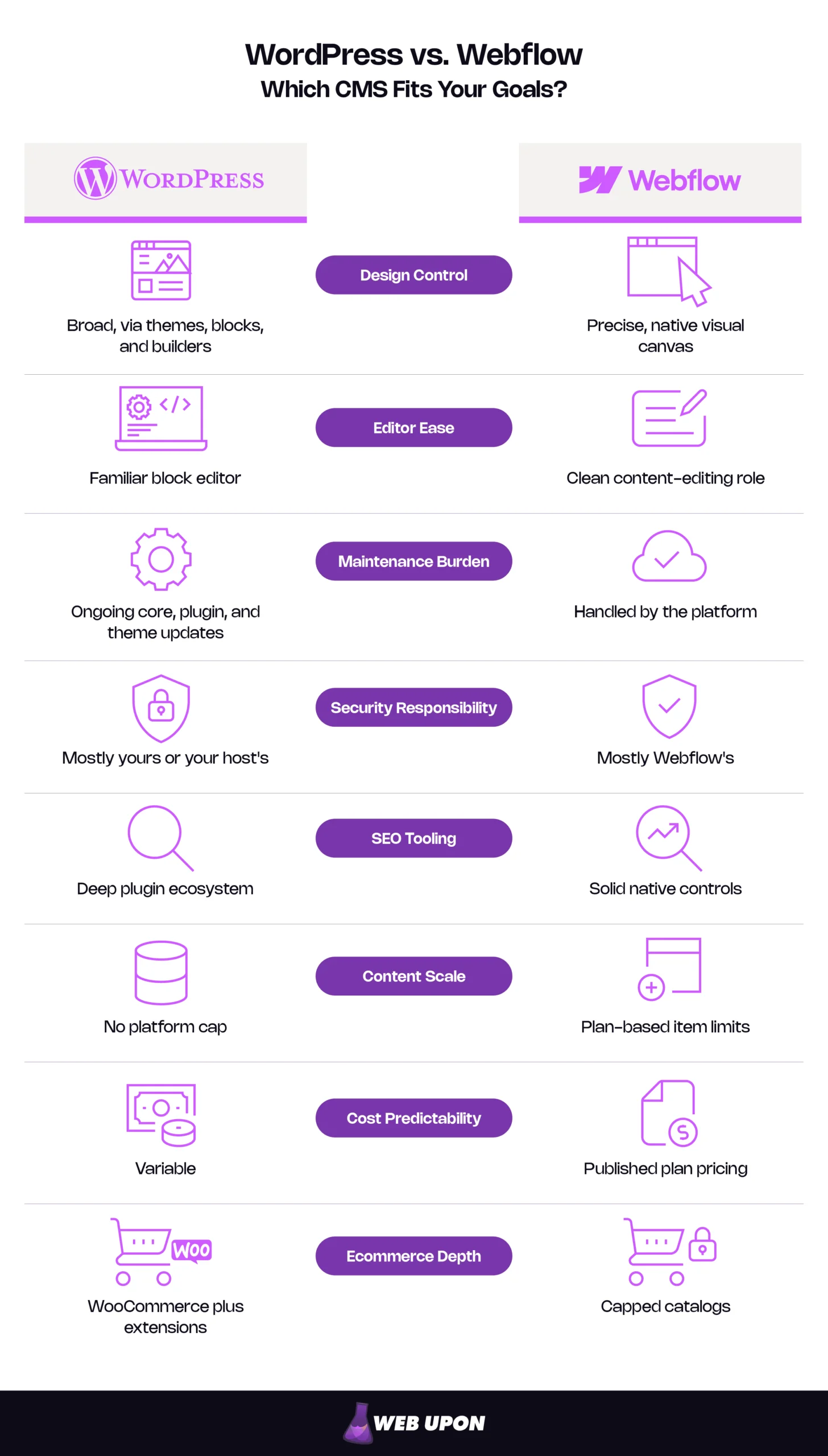
Side-by-side comparison of WordPress and Webflow across eight key CMS factors:
| Factor | WordPress | Webflow | Edge |
| Design control | Broad, via themes, blocks, and builders | Precise, native visual canvas | Webflow |
| Editor ease | Familiar block editor | Clean content-editing role | Tie |
| Maintenance burden | Ongoing core, plugin, and theme updates | Handled by the platform | Webflow |
| Security responsibility | Mostly yours or your host’s | Mostly Webflow’s | Webflow |
| SEO tooling | Deep plugin ecosystem | Solid native controls | WordPress |
| Content scale | No platform cap | Plan-based item limits | WordPress |
| Cost predictability | Variable | Published plan pricing | Webflow |
| Ecommerce depth | WooCommerce plus extensions | Capped catalogs | WordPress |
Here is how those strengths and weaknesses break down platform by platform.
WordPress vs. Webflow Pros and Cons
WordPress Pros and Cons
| Pros | Cons |
| Mature plugin ecosystem | Ongoing plugin and core updates |
| Full code and hosting control | Larger security surface |
| Strong blogging and editorial workflows | Page-builder bloat |
| Deep SEO plugins | Inconsistent design across pages |
| WooCommerce for serious ecommerce | Hidden costs behind the free license |
| Large talent pool | Update-related compatibility and maintenance work |
Webflow Pros and Cons
| Pros | Cons |
| Pixel-level visual design | Steep learning curve without CSS knowledge |
| Native interactions and animation | CMS item and Collection limits |
| Clean code output | Layered plan, workspace, and seat pricing |
| Managed hosting, SSL, and CDN | Smaller app ecosystem |
| No plugin maintenance | Platform dependency |
| Built-in SEO controls | Less flexibility for complex server-side logic |
Every item on these lists traces back to one choice: whether you want an open framework you maintain or a managed platform you rent.
The Real Cost of Choosing the Wrong CMS Before You Build
Why This Decision Is More Consequential Than Most Teams Realize
Look at any team’s calendar six months after a poor platform choice. You’ll find developer hours spent on updates instead of features, creative compromises made to fit a template, and launches that slipped a week at a time.
That tax compounds into technical debt. Every workaround becomes something the next hire must learn, and after two years the site reflects old constraints rather than current goals. High-growth teams, which change fastest, feel it first.
Two illustrative scenarios show how it plays out. A WordPress team loses its product-launch week when a page-builder update collides with a forms plugin and the only developer who can fix it is booked. A Webflow team that started with a single blog Collection later needs authors, topics, and resource types as separate Collections, and rebuilds its content model mid-year.
No wonder marketing and creative leads stall here. This isn’t a features race; it’s an infrastructure decision about where your team’s hours go for the next three years.
Two Different Philosophies: Open-Source Framework vs. Visual-First SaaS
WordPress began in 2003 as open-source blogging software, a fork of the b2/cafelog project, and grew into a general-purpose content management system. As of October 2026, it runs 40.1% of all websites and 58.6% of sites whose CMS is known, according to W3Techs.
Webflow was founded in 2013 as a visual-first SaaS (software as a service) platform for designers who wanted to build production sites without hand-coding. It bundles the design tool, CMS, and hosting into one subscription.
Both have drifted from their original audiences. WordPress now runs enterprise publishers and online stores, and Webflow is now a staple of in-house marketing teams, not just freelance designers.
On paper, both can do most things, so feature lists mislead. What matters is fit with your goals, judged by design control, ease of use, SEO architecture, scalability, security, pricing, and content management.
Design is where many teams feel the difference first, so start there.
Design Freedom vs. Design Precision: Where Each Platform Wins and Loses
Webflow’s Visual-First Design Environment: What It Actually Delivers
Drag a section in Webflow’s Designer and the canvas writes production-ready HTML and CSS as you go. There’s no handoff where a developer reinterprets the design, so what ships is what was approved. You get pixel-level control, custom breakpoints for each screen size, and native interactions and animation.
That precision has a price. Webflow isn’t drag-and-drop simple. It exposes the CSS box model, classes, and layout systems, so it rewards designers who understand CSS and frustrates those who don’t.
For creative directors who have watched brands dissolve inside themes, the trade is usually worth it. The friction lands on non-technical editors, who can find a carefully built design system intimidating when they only need to change a headline.
WordPress Page Builders: The Customization Paradox
Open the plugins screen on a typical marketing site and you’ll often find a page builder at the center of it; W3Techs detects Elementor alone on 31.5% of WordPress sites. Elementor, Divi, and Beaver Builder each bring their own editing model, markup, and update cycle, which fragments how WordPress sites are built and maintained.
The flexibility is real, and so are the side effects. Builders can add code weight that slows pages, and they give every editor enough freedom to drift off-brand. The gap between what WordPress can theoretically do and what a team delivers without a developer is often wide.
Customization turns into a liability when plugins conflict, an update breaks a layout, or pages built by different people stop looking like one site. Themes cut both ways too: thousands of them speed up launch, but sites on popular themes can struggle to look distinctive.
WordPress’s own answer to builder sprawl deserves credit. The native block editor and full-site editing through the Site Editor, which lets block themes design headers, footers, and everything between with blocks, handle many layouts without a third-party builder, which can reduce plugin dependence on a typical marketing site.
Editor Experience: Who Can Safely Update the Site
Picture a marketer fixing a typo before a 6 p.m. launch. In Webflow, the content-editing role lets them change copy, images, and CMS items without touching layouts. Webflow sells that access as a Limited seat, which can edit content or build pages from designer-made components ($15/month billed yearly, versus $39 for a Full design seat).
WordPress’s block editor is familiar to many content teams, which shortens onboarding. The risk comes from page builders, which often give editors enough control to break a layout during a routine edit.
The right choice depends on who edits most. Designer-owned sites favor Webflow, high-volume writing teams favor WordPress, and mixed teams should test roles on both before committing.
For teams weighing Webflow vs WordPress for designers specifically, the summary is short: Webflow is the stronger design tool, and WordPress is the stronger publishing tool.
How WordPress and Webflow handle layouts, animation, editing, and design consistency:
| Design need | WordPress approach | Webflow approach | Who it suits |
| Brand-precise layouts | Custom theme or builder | Native visual canvas | Design-led teams |
| Animations and interactions | Plugins or custom code | Built-in interactions | Creative teams |
| Quick template launch | Thousands of themes | Smaller template library | Lean teams on deadline |
| Non-technical editing | Block editor | Content-editing role | Marketing teams |
| Design consistency at scale | Depends on governance | Enforced by components | Multi-editor teams |
A beautiful site still has to load fast, stay secure, and scale. That is where the maintenance reality sets in.
Technical Performance, Security, and Scalability: The Maintenance Reality Check
Webflow’s Managed Infrastructure: What It Means for Operational Overhead
On Webflow, there’s no update notice waiting on Monday morning. According to Webflow’s security page, every site gets automatic SSL, a global CDN with DDoS protection, and platform patches that need no customer maintenance. The platform also holds SOC 2 Type II and ISO 27001 certifications.
With no plugin cycle, nobody schedules updates or applies emergency patches, and that time returns to creative work.
Clean code helps performance, but heavy images, scripts, and complex interactions slow Webflow pages too, so measure results with Core Web Vitals, Google’s metrics for loading speed, responsiveness, and visual stability. Google’s targets are LCP within 2.5 seconds, INP under 200 milliseconds, and CLS under 0.1.
Hosting scales automatically for marketing traffic, served through Cloudflare’s CDN. The ceiling is enterprise-grade customization, such as server-side logic, which runs through APIs and companion apps rather than direct server access.
Uptime commitments depend on the plan. As of October 2026, Webflow publishes hosting-uptime SLAs only on Team (99.00%) and Enterprise (99.99%), plus a 99.90% application-uptime SLA on both; standard site plans carry no published uptime percentage. That’s the core trade of platform dependency: you give up infrastructure control for operational simplicity.
WordPress Security and Hosting: The Plugin Ecosystem’s Double Edge
Check the access logs of almost any WordPress site and you’ll see automated login attempts. Running 40.1% of all websites makes WordPress a common target, and these brute-force attempts are often spread across botnets. The core software is actively maintained; the exposure usually comes from what surrounds it.
WordPress’s own hardening guide is candid here. Hosts generally secure the infrastructure, not the application you install. Compromises more often trace to that application layer, such as exploits against outdated plugins, than to the server. The plugin ecosystem is WordPress’s great strength and, often, its weak point on security.
Hosting flexibility is a genuine advantage, though. Compliance-sensitive organizations can run WordPress on dedicated infrastructure, in a chosen region, under their own security controls.
The true wordpress maintenance cost lives in recurring work: security audits, plugin and theme updates, compatibility testing, backups, and monitoring. Managed WordPress hosting takes over part of it (typically server patching, backups, and caching), but it usually won’t vet your plugins or test whether this week’s update breaks your forms.
WordPress scales a long way, but only with proportional technical investment.
| Responsibility | Self-hosted WordPress | Managed WordPress hosting | Webflow |
| Hosting | You | Host | Webflow |
| SSL | You | Host | Webflow |
| Core updates | You | Host (often automated) | Webflow |
| Plugin/app updates | You | Usually you | App developers; you choose and review apps. |
| Security monitoring | You | Shared | Webflow (platform level) |
| Backups | You | Host | Webflow |
| Performance tuning | You | Shared | Mostly Webflow; page weight is yours. |
| Custom code | You | You | You |
Maintenance decides what the site costs to keep running. SEO architecture decides what it earns.
SEO Architecture, Content Management, and Blogging Capabilities
SEO Foundations: Plugin Depth vs. Native Controls
Install an SEO plugin on WordPress and you get more than a decade of refinement in one click. Tools such as Yoast and Rank Math automate schema and content analysis, and add redirect management and internal-link suggestions: free in Rank Math, paid in Yoast SEO Premium ($118.80/year as of October 2026). That gives detail-minded teams a deep toolkit.
Webflow isn’t the stripped-down option it’s sometimes described as. Its native SEO features include clean semantic markup, editable meta titles and descriptions, automatic XML sitemaps, canonical tags, 301 redirects, robots.txt control, and schema markup support. On Webflow vs WordPress for SEO, the real difference is depth and automation, not absence.
WordPress offers more architectural freedom but often needs a specialist to configure it; Webflow gives marketers controls they can run themselves, within fixed limits. If WordPress is your path, a dedicated WordPress SEO strategy turns that freedom into rankings rather than plugin clutter.
Content Management and Blogging at Scale
A newsroom with 30 writers runs comfortably on WordPress, with unlimited posts, custom post types, revisions, scheduling, and editorial roles built in. WordPress grew up as a blogging platform, and it shows.
Webflow organizes content into CMS Collections, its structured content types such as blog posts or case studies. They’re excellent for design-controlled templates, but constraints appear as content grows, so content-heavy teams should plan around the webflow cms limits from day one.
The Premium site plan includes 20,000 CMS items and 40 Collections, Team includes 20,000 items and 100 Collections, and Enterprise is custom. Ecommerce site plans carry their own, lower CMS item limits (2,000 items on Standard and up to 10,000 on Plus and Advanced), which matters if one site will hold both a store and a large blog.
Items drain faster than post counts suggest. A team publishing 15 posts a month will have 540 posts after three years, but Webflow recommends a separate Collection for each content type, such as posts and authors, and every author profile, topic page, and series entry is an item too. Field limits matter as well: on the Team plan, each Collection allows 100 fields and 20 reference fields, which caps how richly content types can link.
Switching Platforms Without Losing Rankings
Launch day after a migration often looks fine, until the traffic report arrives two weeks later. Every URL that changes without a proper redirect throws away accumulated ranking signals. That makes a CMS move the riskiest moment for organic traffic.
Whatever the direction, a sound migration plan covers the same essentials:
- Map every old URL to its new equivalent with 301 redirects, and keep them live for at least a year.
- Carry over titles, meta descriptions, and image alt text.
- Update internal links to point at the new URLs directly.
- Monitor indexing, rankings, and crawl errors closely after launch.
URL conventions shape the plan. WordPress permalinks are flexible, so posts can sit at the root or follow almost any pattern. Webflow builds Collection page URLs from a fixed Collection path plus the item slug, such as /blog/post-name, with one dynamic segment per page. Moving to Webflow therefore often changes blog URLs and needs a full redirect map; if you later rename a Collection path, one wildcard redirect can cover every item in it.
Check portability before you start. Webflow exports static HTML and CSS on paid workspace plans, but CMS content leaves Collection by Collection as CSV files and forms stop working. WordPress’s built-in export packages posts, pages, comments, custom fields, taxonomies, and users in a standard XML file.
Google’s guidance on site moves with URL changes is the authoritative checklist, and it treats temporary ranking fluctuation as normal during a move. Strategic SEO support is often the difference between that temporary dip and a lasting loss. If you’re planning a move, have your redirect and URL plan reviewed before launch.
SEO features compared between WordPress plugins and Webflow native controls:
| SEO capability | WordPress | Webflow |
| Meta and Open Graph control | Full, via SEO plugins | Native fields per page and CMS item |
| XML sitemaps | Via plugin or core | Automatic, with controls |
| 301 redirects | Via plugin or server | Native redirect manager |
| Schema markup | Automated via plugins | Native support, more manual setup |
| Canonical tags | Via plugins | Native global and page-level |
| Content scale | No platform cap | Plan-based item and Collection limits |
| Multilingual SEO | Multilingual plugins | Webflow Localize add-on (subdirectories, hreflang in localized sitemap) |
SEO and content scale shape what the platform is worth. Next: what it actually costs.
Pricing and Ecommerce: The True Cost Beyond the Sticker Price
Webflow Pricing: Site Plans, Workspace Plans, and Seats
A Webflow invoice usually has more lines than buyers expect. Webflow pricing works per site, then adds the workspace and its seats, so costs climb with team size more than with traffic. All figures below come from Webflow’s pricing page, as of October 2026.
Site plans (billed yearly): Starter is free on a webflow.io domain, Basic is $15/month for sites without a CMS, and Premium is $25/month for CMS-driven sites.
Platform plans bundle site, workspace, and add-ons. Team is $2,500/month on an annual contract and includes five Full and five Limited seats, Webflow Localize with two locales, and publishing workflows. Enterprise is quote-based.
Teams not on a platform plan pay for workspaces and seats on top: Core at $19/month or Growth at $49/month (billed yearly), plus Full seats at $39/month and Limited seats at $15/month. Bandwidth upgrades and add-ons such as Analyze (from $9/month), Localize (from $9/month), and Optimize (from $299/month) add to the total.
WordPress Pricing: The Real Cost Behind the Free License
Downloading WordPress costs nothing. Running it well doesn’t.
Hosting ranges from shared to managed to dedicated, premium plugin and theme licenses usually renew yearly, and security and backup services add another line. The largest and least predictable cost is developer time, which spikes whenever an update breaks something.
| WordPress cost category | Relative weight |
| Hosting (shared to dedicated) | Low to High |
| Premium plugins and themes | Low to Medium |
| Security and backup services | Low to Medium |
| Developer maintenance time | Medium to High |
Ecommerce: Webflow Ecommerce vs. WooCommerce
Picture a product page where every pixel matches the brand book, then picture a store with 40,000 SKUs and tiered wholesale pricing. That’s the webflow ecommerce vs woocommerce choice in one image: design control versus extensibility.
Webflow’s ecommerce plans (billed yearly) are Standard at $29/month with 500 items and a 2% transaction fee, Plus at $74/month with 5,000 items, and Advanced at $212/month with 15,000 items, the last two with no transaction fee. Stripe or PayPal processing fees apply on top. Items count products, variants, and categories, so a catalog with many sizes and colors hits its cap sooner than its product count suggests.
WooCommerce is free, open-source software, but real stores usually pay for extensions (subscriptions, shipping rules, or B2B pricing), capable hosting, and payment-provider fees. On the official marketplace, WooCommerce Subscriptions costs $279/year and Table Rate Shipping $119/year (as of October 2026).
Webflow Ecommerce suits design-led brands with modest catalogs; WooCommerce suits larger catalogs and complex store logic.
Which Platform Delivers Better ROI by Team Type
- If you are a design-led agency or studio: Webflow usually wins, because design hours turn directly into shipped pages.
- If you are a SaaS marketing team: Webflow usually wins when launches dominate; WordPress wins when content volume drives pipeline.
- If you are a content-heavy publisher: WordPress usually wins, with no item limits and mature editorial workflows.
- If you are a scaling ecommerce business: WordPress with WooCommerce usually wins once catalog size or store logic outgrows Webflow’s plans.
36-month cost categories for running a WordPress site versus a Webflow site:
| 36-month cost category | WordPress | Webflow |
| Platform/site plan | Free software | $25/month Premium or $2,500/month Team |
| Team seats | Free user accounts | $39/month Full, $15/month Limited seats, or bundled with Team |
| Hosting | Low to High | Included in site plan |
| Plugins, apps, and add-ons | Medium | Low to Medium |
| Themes and templates | Low | Low |
| Ecommerce fees | Extensions plus payment fees | 29–212/month plan, plus 2% fee on Standard |
| Implementation | Medium to High | Medium to High |
| Ongoing maintenance | Medium to High | Low |
| Internal time | Medium to High | Low to Medium |
Build quality decides how much of this cost recurs, which is why it pays to choose web design and development services that plan for maintenance, not just launch.
You now have every input. Here is how to weigh them for your team.
Making the Final CMS Decision: A Goal-Based Decision Matrix
Strip the comparison down and one question is left: are you optimizing for design-to-launch speed and operational simplicity, or for maximum extensibility and content scale?
When Webflow Is the Right Choice
Webflow is the right choice when design precision, reduced developer reliance, and managed security are non-negotiable priorities. That usually describes:
- Design-led marketing teams that launch campaigns and landing pages weekly
- Brands where visual consistency is part of the product
- Lean teams with no developer available for routine maintenance
- Companies whose site is mainly a lead-generation surface rather than a publishing engine
When WordPress Is the Right Choice
WordPress is the right choice when deep content operations, plugin extensibility, hosting control, and ecommerce scale are the primary drivers. That usually describes:
- Publishers and content teams producing high volumes every month
- Organizations needing custom functionality, integrations, specific hosting, or a headless CMS (content served by API to a separate frontend)
- Compliance-sensitive companies that must control where and how the site runs
- Stores with large catalogs or complex pricing and fulfillment logic
When a Hybrid Setup Makes Sense
Some teams run Webflow for the marketing site and WordPress for a content hub, resource library, or application-adjacent build. Each team gets the tool it needs.
The cost is real: two platforms, two skill sets, and a subdomain-or-subfolder decision with SEO consequences. Content split across platforms needs careful URL planning to keep its authority consolidated.
Questions to Answer Before You Commit
- Who will update the site most often: designers, marketers, or developers?
- How much content will you publish over the next three years, and how complex is its structure?
- Who will own security, updates, and backups, and is that time budgeted?
- Do you need ecommerce, and how large and complex is the catalog?
- How much of your traffic and pipeline depends on organic search, and who protects it during a build or migration?
| Criterion | Leans WordPress | Leans Webflow |
| Design precision | Acceptable within themes | Brand-critical |
| Editor independence | Many writers publishing daily | Marketers editing within designs |
| Maintenance appetite | Developer time is budgeted | No appetite for upkeep |
| Content volume | High or open-ended | Moderate and predictable |
| SEO control | Maximum technical depth | Strong native controls suffice |
| Ecommerce scale | Large or complex catalog | Modest catalog |
| Cost predictability | Variable costs acceptable | Fixed plans preferred |
Whichever way your answers point, the next step is the same: pressure-test the choice before you build.
Choose the CMS Your Team Can Run Well
The WordPress vs Webflow decision comes down to fit, not features. Webflow gives design-led teams speed and freedom from upkeep; WordPress gives content-heavy, technically resourced teams control and room to grow.
Go back to that landing page waiting in the queue. The right CMS is the one whose maintenance your team can sustain while it keeps shipping the work it does best, measured against the hours you actually have. Choose well, and that page gets a launch date instead of a place in line.
Three steps will get you there:
- Map who edits the site and how often.
- Price the full 36-month cost, including people and maintenance.
- Plan SEO protection before any build or migration begins.
If you’re choosing a platform or planning a move between them, contact Web Upon. We’ll review your planned build or migration before the platform contract is signed, so your design ambitions and your search performance both make it through intact.