Migrating from Squarespace to WordPress is not itself the risk. Doing it in the wrong order is. You will not lose your rankings if you preserve your URLs, your metadata, and your content structure. Everything else is logistics. In practice that means three jobs. First, inventory every indexed URL, title tag, meta description, heading, image, and backlink before you touch anything. Second, build a 1:1 redirect map so every old address points to its exact new equivalent, with no gaps and no chains. Third, manually rebuild the metadata and image layers that the export does not carry.
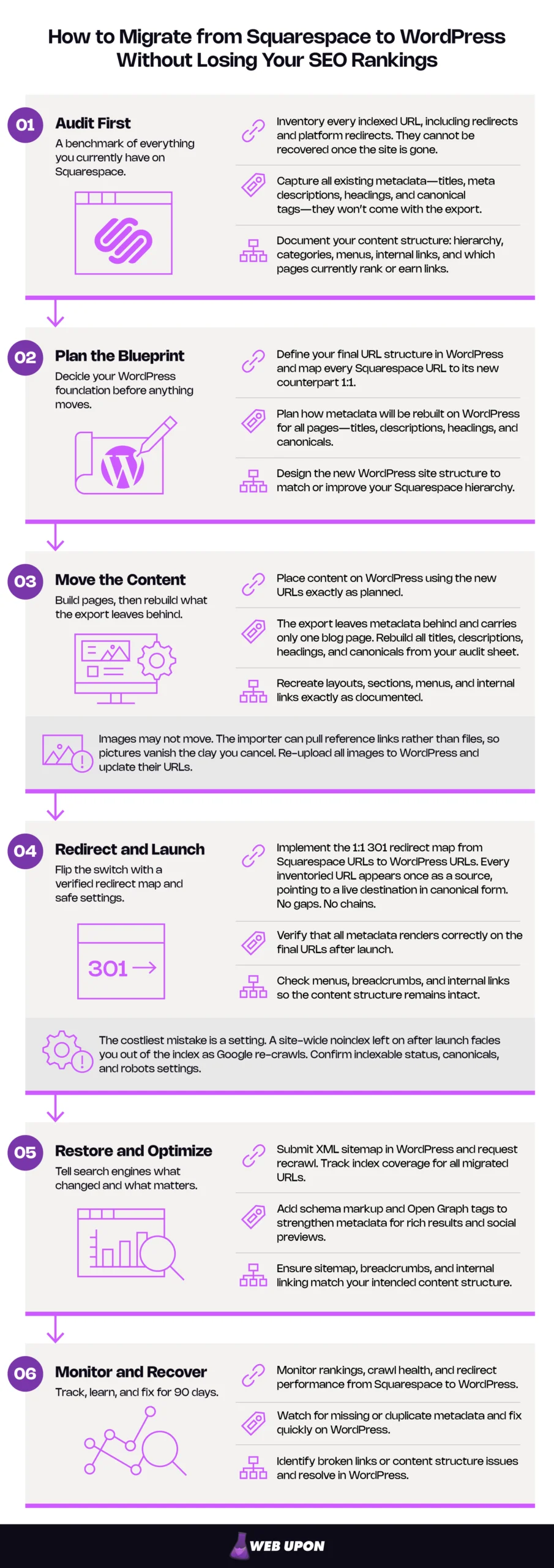
Do those three things and a short-term wobble in the first two to six weeks is normal and recoverable. Skip any one of them — particularly the redirect map — and the losses compound and can become permanent. This SEO guide walks you through 6 phases that ensure your URLs, metadata, and content structure are protected when you migrate from Squarespace to WordPress.
Key Takeaways
- Audit first. Several fields, including your old platform redirects, cannot be recovered once the site is gone.
- The redirect map is the single point of failure. Every inventoried URL appears once as a source, pointing to a live destination in canonical form.
- The export leaves your metadata behind and carries only one blog page. Titles and descriptions are rebuilt from your audit sheet.
- Images may not move. The importer can pull reference links rather than files, so pictures vanish the day you cancel.
- The costliest mistake is a setting. A site-wide noindex left on after launch fades you out of the index as Google re-crawls.
- Measure index coverage, not traffic, and expect weeks of movement before it settles.
- Do one thing at a time. Migrate on matching URLs; redesigns and restructures are separate projects.
Skip the groundwork and you will spend the recovery period guessing which of forty changes caused the problem. Phase 1 is how you make sure you never have to guess.
Phase 1: Pre-Migration Audit
Understand what’s actually at stake for your search visibility
Your rankings are not a single thing that lives in one place. They are an accumulation of signals attached to specific addresses, and a migration touches nearly all of them at once.
Squarespace holds much of that accumulation inside structures you do not directly control. Your URL patterns are constrained by the platform. Your metadata lives in fields that belong to the platform’s own schema. None of it is lost when you leave — but none of it travels automatically either, and the parts that do not travel are not announced to you on the way out.
| Signal | How it breaks in a migration | Severity if lost |
| URLs | Pattern differences between platforms silently change addresses. | Critical |
| Title tags | Not carried by the export; regenerate from post titles. | Critical |
| Meta descriptions | Not carried by the export; blank on arrival. | High |
| Heading structure | Import can flatten or duplicate H1s. | High |
| Internal links | Hard-coded old paths become 404s or chains. | High |
| Canonical tags | A canonical tag tells search engines which version of a page is the real one; the new site generates its own, which may point somewhere unhelpful. | High |
| Image URLs | Change on import, breaking image search and external hotlinks. | Medium to high |
| Schema markup | Platform-generated markup does not transfer. | Medium |
| Page speed | New theme and plugins change performance profile entirely. | Medium |
Most migration failures are invisible for weeks. That is not bad luck — it is how crawling works. For a move to complete, Googlebot has to visit every URL on both the old and the new site at least once; there are no fixed crawl frequencies, and the move happens on a per-URL basis. A broken page is not broken in Google until Google looks at it.
So a site with four hundred URLs can be leaking traffic for two weeks while your reports still show last month’s picture. By the time the graph moves, the cause is three weeks old and buried under everything else you changed.
Watching carefully after launch cannot replace verifying carefully before it. Vigilance finds errors on Google’s timetable. Verification finds them on yours.
Which brings us to the distinction that matters most, and the one people get wrong under pressure. A dip and a collapse look identical on day three. They do not look identical if you know what to compare.
- A normal dip is broad, shallow, and moving. Impressions soften across many pages at once. Positions slip rather than vanish. The line stops falling and starts climbing within a few weeks. Crucially, the number of pages in the index stays roughly level against what you had before.
- A collapse is narrow, deep, and static. Specific pages or entire page types disappear from the index rather than ranking lower. Index coverage sits materially below your old page count. Impressions for the affected pages go to almost nothing, and stay there.
The signal to watch is index coverage against your pre-migration page count — not traffic. Traffic is a noisy composite with seasonality in it. Coverage is a number you can count, compared against a number you already noted down.
Benchmark and inventory everything you currently have on Squarespace
Everything from here forward is executed against one spreadsheet: your SEO baseline. Build it before you touch anything, because several of these fields cannot be recovered once the old site is gone.
Your pre-migration audit in six steps:
- Crawl the live site and export every indexed URL.
- Capture the on-page layer for each one: title tag, meta description, H1, word count, canonical, indexed status.
- Add the value layer — organic sessions per page for the last twelve months, and entrances from referring domains.
- Count the images on each page, and note which pages carry embedded content rather than plain text.
- Export your top performers separately. These are the pages you will restore by hand, in order, before launch.
- Inventory your existing redirects. Squarespace’s URL-mapping panel holds rules that fire top to bottom, so copy down the order too. If your site has ever been rebuilt or had a page renamed, you are almost certainly carrying redirects already.
That sixth step is the one that gets skipped, and it is the one with the longest tail. Those old mappings live in the platform’s settings panel and appear nowhere in your content export. If you don’t record them now, they simply cease to exist at cutover. The links they were catching are usually your oldest and most valuable ones, pointing at a generation of URLs you stopped thinking about years ago.
Small site or large site? Under ~50 URLs: export your pages from Search Console, fill in the columns by hand, and you are done in an afternoon. 100+ URLs: run a full crawl, then sort by organic sessions and work the top 20% first. You will not restore everything manually, and you should not try. Prioritization is the whole job at this scale.
If you would rather have the baseline captured properly by someone who does this regularly, a professional pre-migration SEO audit removes the risk of finding a gap in your baseline three weeks after the old site is switched off.
Your audit is the reference document for everything that follows. That makes the next decision — how your new site is structured before a single file moves — the cheapest place in this project to prevent damage.
Phase 2: Planning Your SEO-Safe Migration Blueprint
Choose the right hosting provider and WordPress environment for SEO performance
Squarespace handled your infrastructure. Now you are choosing it, and the choice shows up directly in your page load times and Core Web Vitals.
Your criteria for WordPress hosting:
- Server response time under load, not on an empty test site
- Current PHP version and generous resource limits
- Built-in caching at the server level
- CDN availability for image and asset delivery
- A staging environment included rather than sold separately
- Automated backups with a restore you can actually trigger yourself
A staging environment matters more here than in an ordinary build, because it is where you will verify your redirect map against real pages before any of it is public.
WordPress settings to configure before you import anything:
- Search engine visibility — the setting that asks search engines not to index the site. On during staging. Off at launch.
- Permalink structure — set to mirror your existing URLs, before content arrives.
- HTTPS and canonical domain — pick www or non-www, and enforce it.
- Timezone — wrong timezone produces wrong publish dates on every imported post.
- Media handling — decide your upload organization before hundreds of files land in it.
The default noindex search engine visibility setting is meant to be on while you build. The failure is forgetting to switch it off. And because Google has to crawl a page before it can see the rule, the site does not vanish at launch. It fades, over days, as each URL gets revisited, and a revisit can take months. By the time it looks like a catastrophe, it has been running for a week.
So give it a verification step: after launch, view the source of your live homepage and confirm there is no site-wide noindex instruction sitting in it.
Design a URL structure that preserves your SEO architecture
Here is the good news and the bad news together. Most of your URLs can be matched exactly. Some of them cannot, and knowing which is which now — rather than at launch — is what keeps this from becoming a crisis.
Squarespace imposes structural rules that are not optional. Blog posts always sit beneath the blog page’s own slug. Product URLs on version 7.1 always contain a /p/ segment. Those constraints shaped your addresses whether you noticed or not.
| Your Squarespace pattern | WordPress equivalent | Exact match? |
| Standard page: /page-slug | Native page permalink | Yes |
| Blog post: /blog/post-slug | Custom permalink structure keeping the prefix | Yes |
| Dated post: /blog/yyyy/mm/dd/post-slug | Day-and-name structure, prefixed to match | Yes |
| Category and tag archives | Category and tag bases, renamed to match | Usually |
| Product: /store/p/product-slug | No native equivalent for the /p/ segment | No — redirect |
| Event: /events/date/event-title | No native equivalent | No — redirect |
If you run a store or an events calendar, those last two rows are your project plan. Those URLs are changing, they will need redirects, and you now know that before you have committed to anything. WordPress’s permalink documentation covers the structure tags you will use to match your remaining URL slugs.
There is one more difference, and it is small enough to be invisible and large enough to break your verification later. Squarespace URLs carry no trailing slash. Most WordPress permalink structures end with one, and WordPress core enforces its own preferred form with a canonical redirect of its own. So /about and /about/ are different addresses, and a URL you believe you matched exactly may not be matched at all.
The consequence lands in Phase 4. If you write your redirect map’s destination column without trailing slashes, every row resolves in two hops — yours, then WordPress’s — and your map fails its own test on every single line. Write destinations in the exact form your new site serves, then load one to confirm the browser does not rewrite it.
Now, the temptation. You are rebuilding, you are looking at your URLs properly for the first time in years, and several of them are embarrassing. Leave them alone.
Do not restructure and migrate in the same event. Move on matching URLs, confirm the site is stable, then restructure later as its own project with its own redirect plan. Two changes at once means that if traffic moves, you will never know which one did it and you will spend a month proving something you could have known instantly.
Select migration tools and plugins that protect SEO data integrity
Squarespace’s XML export produces a WordPress-formatted file, and its documentation is honest about the limits — but only if you go looking. What it carries and what it leaves behind:
| SEO asset | Status |
| Layout pages | Carried |
| Blog posts and comments | Carried — one blog page only, up to 1,000 comments per post |
| Text and image blocks | Carried |
| Embedded block content | Partially — text arrives with minimal structure |
| Gallery pages | Carried (York project pages on version 7.0 only) |
| Title tags | Not carried |
| Meta descriptions | Not carried |
| Store, calendar, portfolio, album, cover, index, and info pages | Not carried |
| Additional blog pages | Not carried |
| Audio, video, and product blocks | Not carried |
| Dropdowns | Not carried |
| Page-specific headers, footers, sidebars | Not carried |
| Drafts, style settings, custom CSS | Not carried |
Your title tags and meta descriptions are not in the file. Squarespace enumerates what the export carries, and SEO metadata is nowhere on that list. Every one of them is rebuilt by hand or by template, which is why Phase 3 exists and why your audit spreadsheet is not optional.
Only one blog page exports. If you run a blog and a resource library and a news section, the export prompts you to pick one and takes only that. Two entire content sections can simply not arrive, and their absence stays invisible until you count pages in Phase 5. If you have multiple collections, plan to export and import them separately.
Then there are your images, which are their own trap.
Squarespace’s documentation is explicit that when you import into a self-hosted WordPress site using the standard importer, images may not actually move. WordPress may pull only reference links — so the pictures display perfectly, sourced from Squarespace’s servers, until the day you cancel your subscription. Then every image on your site disappears at once, weeks after a migration you thought had gone well.
The fix: download your media and upload it directly, then confirm the images load from your own media library before you cancel anything.
If the importer stops part way as large imports often hit a server time limit, re-run the same file. It is built to be re-run when a runtime limit cuts it short, and skips posts it already created, so a second pass fills gaps rather than duplicating them. Import in smaller batches if it keeps timing out, and reconcile your counts either way.
Your blueprint is now complete, which means the next phase is the first one you cannot simply undo.
Phase 3: Executing the Content Migration Without Losing SEO Data
Work through this as a procedure. Each stage ends with a check that stops a small error becoming a structural one three steps later.
Transfer XML content while preserving metadata and heading structures
- Export from Squarespace. Your site must be published and active — trial sites cannot export, and an expired site may need reactivating first, by which point content may be gone. If you have more than one blog, note which you selected. Verify before continuing: open the file and confirm your expected number of posts and pages is present.
- Import into your staging site. Use the standard importer, and let it complete fully. Verify before continuing: compare your post and page counts against your audit spreadsheet.
- Handle media separately. Upload your downloaded images and repoint any that reference the old domain. Verify before continuing: inspect an image on any imported post and confirm the source is your own media library.
- Audit heading structure at scale. Do not do this page by page. Crawl staging, export the H1 and H2 columns, and sort for pages with zero H1s or more than one. Verify before continuing: every page has exactly one H1.
Then hunt duplicates, because the import creates them quietly:
- Pages imported as both pages and posts — delete one, keep the type that matches your URL.
- Drafts or revisions surfacing as live URLs — set to draft or delete.
- Category and tag archives generating thin listings — noindex the ones with no unique value.
- Paginated archives competing with primary pages — confirm canonical tags point where you want them.
- Embedded content arriving as orphaned text — find every page that previously carried an embed and check what actually landed. A stripped paragraph where a video used to be is easy to miss and sits on a page that still ranks.
Synchronize meta titles and meta descriptions manually after import
You already know these did not transfer. The question is the order you rebuild them in, because at any real scale you cannot do all of them before launch and should not try.
Sort your audit spreadsheet by organic sessions, descending. Then work in tiers:
| Tier | Which pages | When | How |
| 1 | Top pages by organic traffic, plus anything driving conversions | Before launch | By hand, exactly as they were |
| 2 | The rest of your meaningful traffic | Before launch if possible | Bulk editing from the spreadsheet |
| 3 | Low-traffic and archive pages | After launch | Template, refined later |
Install an SEO plugin first, since it supplies the fields you are filling and the bulk editor you will use for tier two. Set a sensible title template before you start, so tier three is defensible rather than empty.
If you have 500 URLs: everything above your traffic threshold is restored manually before launch. Everything below it gets the template now and attention later. For planning purposes, budget hours rather than minutes per hundred pages of tier-one work — it is slower than it looks, and rushing it defeats the point.
Restore image SEO: alt tags, file names, and image optimization
Image URLs change during a migration, and that costs more than it appears to.
Your images have their own accumulated equity. They rank in image search under their own addresses. Some of them are hotlinked by other sites, which means those addresses carry referring links you never counted. When the URLs change without redirects, all of that quietly detaches.
Post-import image audit:
- Every image loads from your own media library, not the old domain
- No broken image references anywhere in the crawl
- Alt text present and descriptive on every image that carries meaning
- File names descriptive, hyphenated, and lowercase
- Oversized files compressed and served in a modern format
On alt text, the convention is simpler than most guidance suggests: describe what the image shows to someone who cannot see it.
Your content now exists correctly in its new home. It is still, as far as Google is concerned, unreachable — because nothing yet connects your old addresses to your new ones.
Phase 4: The 301 Redirects That Save Your Search Rankings
Build a high-precision 301 redirect map before going live
A redirect map is a spreadsheet. Its job is to guarantee that every address that existed before still leads somewhere sensible afterwards.
| Column | Purpose |
| Old URL | Source, from your audit inventory |
| New URL | Destination, in exact canonical form |
| Page type | Lets you spot pattern-level rules and apply bulk redirects |
| Organic traffic | Tells you what to verify first |
| Status | Mapped / implemented / verified |
| Verified date | Proof, not memory |
Completeness is a property you can check, and here is the check: every URL in your pre-migration inventory appears exactly once in the source column, with no blanks and no duplicates. If your inventory has 412 rows, your map has 412 unique sources. Anything else is an incomplete map.
Add your old Squarespace URL mappings as their own rows. Those historical addresses need destinations too, or you ship a map that is complete against today’s URLs and full of holes against yesterday’s.
Some pages will have no direct equivalent — retired services, consolidated posts, discontinued products. The rule is: redirect to the closest genuinely relevant page, not to your homepage. Google warns that bulk-redirecting old URLs to the home page confuses users and might be treated as a soft 404 — so the equity you were protecting is forfeited anyway. You have also made your site less useful for the person who clicked.
Avoid the most damaging redirect errors that kill rankings
You will hear that only a 301 passes link equity — the accumulated ranking value that links to a page have built up. That is not quite right. Permanent redirects do not cause a loss in PageRank, and Googlebot follows temporary redirects too. The difference sits in canonicalization, not equity. It is intent.
A 301 says this address has permanently become that one — so Google updates its index to the new URL. A 302 says this is temporary, keep the original — so Google keeps indexing an address that will never exist again.
| Type | What it says | Use it when |
| 301 | Permanently moved | Every URL in a migration |
| 302 | Temporarily moved | Genuinely temporary changes only |
| 307 | Temporarily moved | Rare, same logic as 302 |
| Meta refresh | Page-level redirect, instant is read as permanent, delayed as temporary | Avoid for migrations — server-side redirects are Google’s recommended method |
| JavaScript redirect | Redirect after the page renders | Avoid — if rendering fails, Google may never see it |
Two failure modes drain value quietly. A redirect chain is one redirect leading to another — old URL to interim URL to final URL. Each hop adds delay and dilutes clarity about which address is real. A redirect loop is a chain that eats its own tail, and it makes the page unreachable entirely.
Test before DNS changes, not after. Run your old URL list through a crawler in list mode against your staging site, then check every row against a pass condition you do not bend:
- No 404s
- No chains longer than one hop
- No loops
- No 302s
- Every destination returns a 200
This is where trailing slashes bite. If your destinations are written in the wrong form, every row will report a chain, and the problem is in your spreadsheet rather than your redirect rules.
If you find errors after going live — and this applies whether you launched yesterday or three months ago — work in this order:
- Crawl your old URL list against the live site.
- Isolate every row returning anything other than a single hop to a 200.
- Fix the highest-traffic rows first, using your audit spreadsheet to rank them.
Re-crawl to confirm, rather than assuming. Redirect errors found late are still fixable; the equity mostly waits for you.
Manage domain transfer and DNS settings without triggering downtime
Your launch-day DNS and redirect sequence timed from 48 hours before go-live:
| When | Step | Why |
| T-48h | Reduce your DNS TTL. | The old value is cached, shortening it early keeps DNS propagation fast at cutover |
| T-24h | Final redirect verification against staging. | Last chance to catch a broken map |
| T-1h | Freeze content changes. | Nothing should differ between what you tested and what you ship |
| T-0 | Update DNS records. | The actual cutover |
| T+1h | Confirm HTTPS, canonical domain, and no site-wide noindex. | The fade failure starts here if you miss it |
| T+2h | Submit your sitemap in Search Console. | Tells Google there is something new to look at |
| T+4h | Spot-check live redirects across page types. | Verifying reality, not staging |
| T+24h | Full crawl of the live site. | Catches anything the spot-check missed |
| Standing | Do not cancel Squarespace until media is confirmed locally hosted. | The image trap has a long fuse |
One clarification worth making, because it sends people down the wrong path. Search Console has a Change of Address tool, and it does not apply here. Google scopes that tool to moves between domains. You are keeping your domain and changing your platform, so the instruments you want are the sitemap submission and URL Inspection.
Your site is live and correctly redirected. What remains is rebuilding the technical layer Google uses to re-evaluate you.
Phase 5: Post-Migration SEO Restoration and Technical Optimization
The first seventy-two hours are about speed of restoration. The faster the signals come back, the faster the re-crawl cycle resolves.
Rebuild your XML sitemap and submit it to search engines
Your old sitemap listed old URLs generated by a platform you no longer use. It is now wrong in every particular, and your SEO plugin generates a replacement automatically.
- New sitemap generating and publicly reachable
- Noindexed pages excluded
- Gate: sitemap URL count reconciled against your pre-migration inventory count
- Submitted through the Sitemaps report in Search Console
- Old sitemap removed from Search Console
That third item is a gate rather than a checkbox. Count the URLs in your new sitemap. Compare against the count in your audit spreadsheet. They should be close.
If they are materially apart, something did not arrive — pages failed to import, or they arrived set to noindex, or you have just discovered that only one of your three blog collections came across. Every one of those is a launch-blocking problem, and finding it in hour one instead of week three is the difference between an afternoon’s work and a recovery project.
An accurate sitemap also spends your crawl budget — the set of URLs Google can and wants to crawl — on pages that exist rather than addresses that do not. That mostly constrains very large or fast-changing sites.
Implement schema markup and advanced SEO settings in WordPress
Restore first, expand second. Those are different jobs and mixing them is how the restoration gets forgotten.
Restoration means rebuilding the structured data your old site generated automatically: article markup on posts, organization details, breadcrumbs, and product or local business information if they applied to you. Your SEO plugin handles most of this from configuration rather than code.
Expansion is what becomes possible afterwards, and it is genuinely new. You are no longer limited to the markup types your platform chose to support.
| Business model | Restore first | Then verify |
| Service business | Organization, breadcrumbs, service pages | Rich Results Test |
| E-commerce | Product, offers, reviews, breadcrumbs | Rich Results Test |
| Publisher | Article, author, breadcrumbs | Rich Results Test |
| Local business | LocalBusiness, opening hours, location | Rich Results Test |
Google has withdrawn several rich result types in recent years. FAQ results stopped appearing in Search on 7 May 2026, for any site, with reporting and testing retired behind them. Structured data still earns its place by making your pages machine-readable, and that matters more as answer engines parse content directly. But verify the current status of any result type before you build a plan around it, and treat visual snippets as a possibility rather than a deliverable.
Audit site speed, Core Web Vitals, and mobile responsiveness after launch
Squarespace handled performance for you. WordPress hands you the controls to make things better, and also the ability to make things worse.
The usual suspects, in the order they usually turn out to be responsible:
- Plugin bloat — several plugins doing overlapping jobs, all loading on every page
- Unoptimized theme assets — large stylesheets and scripts loading regardless of need
- Render-blocking scripts in the head that delay the first meaningful paint
- Missing caching at either the server or application level
- Uncompressed imported media — your images arrived at their original dimensions
Core Web Vitals comparison table for pre-migration and post-migration performance:
| Metric | Pre-migration baseline | Current | Target |
| LCP | < 2.5s | ||
| INP | < 200ms | ||
| CLS | < 0.1 | ||
| Mobile usability | No issues |
Before you fill in that “current” column, know which clock you are reading. These are field metrics, drawn from real visitor data across a 28-day rolling window. Fill the column in on launch day and you are measuring a window that is still mostly full of your old site — and you will draw a conclusion about your migration from data that predates it.
So run lab tests immediately to hunt regressions, and hold the field comparison until roughly day thirty, once the window has turned over. If performance is genuinely worse and the causes are not obvious, a site speed audit will find them faster than trial and error with plugins.
Two things also worth checking: if your old baseline predates 2024 it may be measured in First Input Delay, a metric retired that year when INP replaced it — you will need a fresh reference point. And confirm mobile rendering directly, because your new theme is making entirely different decisions from your old template.
The foundation is restored. What remains is proving it worked, which is a measurement habit.
Phase 6: Monitoring, Recovery, and Long-Term SEO Sovereignty on WordPress
Schedule post-migration SEO monitoring for the first 90 days
| Weeks | What to check | Where | What normal looks like |
| 1 | Coverage errors, crawl stats, redirect spot-checks | Search Console | New errors appearing and being fixed, crawl activity rising |
| 2–4 | Index coverage, impression recovery | Search Console | Coverage approaching your baseline count, impressions stabilizing |
| 5–8 | Ranking positions against baseline | Rank tracking | Positions recovering toward previous ranges, unevenly |
| 9–12 | Full traffic reconciliation, escalation decision | Analytics + Search Console | Organic traffic within range of baseline, trending correctly |
Anchor your judgment to index coverage against your pre-migration page count, not to traffic. Coverage is countable; traffic is a composite with seasonality and campaign effects in it.
Confirm your analytics is measuring the new site correctly too, since a migration is exactly when tracking quietly breaks. If you are rebuilding measurement anyway, doing GA4 setup properly now saves reconstructing three months of data later.
One timing note carried over from Phase 5: performance data runs on a 28-day window while index data updates continuously. Do not look for speed results in week two.
Recover lost rankings and fixing SEO issues discovered after launch
If traffic has dropped since your migration, work through the fixes. Here’s a diagnostic table matching post-migration traffic symptoms to their likely technical causes:
| Symptom | Likely cause | First fix |
| Traffic falling across all pages, fading over days | Site-wide noindex left enabled | View source on the homepage; remove the directive. |
| Traffic down on specific page types only | A URL pattern missed in the redirect map | Crawl old URLs for that type; add the missing rules. |
| Whole sections missing from the index | Content never imported — often a second blog collection | Compare sitemap count to your old page count. |
| Pages in the index but impressions collapsed | Metadata missing or templated over | Restore title tags and descriptions for top pages. |
| Rankings intact, clicks down | Titles and descriptions changed on import | Compare live metadata against your audit sheet. |
| Images broken weeks after launch | Media never transferred or old subscription canceled | Re-upload media, repoint references. |
| Redirects work but report chains | Trailing-slash mismatch in destinations | Rewrite destinations in canonical form. |
| Old URLs from a previous rebuild now 404 | Historical redirects not carried forward | Recreate them from your old platform’s settings. |
Beyond the specific fixes, three structural problems are worth checking on any site that has dropped. Broken internal links — pages linking to old paths that now redirect or fail. Missing canonical tags, or canonicals pointing at old URLs. Orphaned pages that no longer receive internal links, which increases crawl depth and makes them harder for Google to find and value.
Rebuilding internal linking is often the highest-return recovery work available, because it is entirely within your control and it directly affects how your pages are discovered and weighted. A post-migration content audit is the systematic way to do this as well as for finding and fixing problems when:
- Index coverage remains materially below your pre-migration count after four weeks.
- Traffic has shown no recovery trend at all by week eight.
- Errors persist after your redirect verification passes clean, meaning the cause is elsewhere.
Ranking recovery timelines vary with site size, crawl rate, and how much was actually broken. Most sites that fix a genuine problem see movement once the affected URLs are re-crawled. Nobody can give you a date, because crawl frequency is not yours to control, and anyone who offers one is guessing.
Unlock the full SEO potential of WordPress after migration
Now the part you actually moved for.
Everything constrained on your old platform is now a decision you make, backed by an open-source ecosystem rather than a fixed feature set. Your permalink structure is yours to define rather than inherit. Your redirects are managed at the server level, without limits on how many or what shape. Your structured data is arbitrary rather than a fixed menu — you can mark up anything schema.org describes.
Three things worth building in your first quarter:
- A deliberate internal linking structure. Map your topic clusters and link them purposefully, rather than leaving discovery to chance.
- Structured data beyond the defaults. Mark up what your business actually is, in the detail your competitors have not bothered with.
- A content architecture that can grow. Custom post types, real taxonomies, and templates that will still make sense at three times your current size.
That is what changes. Not that WordPress ranks better — it does not, inherently — but that nothing about your platform decides your ceiling any more. A WordPress SEO strategy built on that flexibility compounds in a way a constrained one cannot.
Your Migration Checklist and Next Steps
Your rankings were never held by your platform. They were held by your URLs, your metadata, and your structure, and you now know exactly what each one costs to lose.
The consolidated checklist:
Phase 1 — Audit
- Every indexed URL inventoried with metadata, headings, and traffic
- Top pages by organic traffic identified and separated
- Existing platform redirects documented
- Backlinks, canonicals, and schema recorded
Phase 2 — Blueprint
- Host chosen against criteria, staging available
- Permalink structure set to mirror existing URLs
- Search engine visibility on for staging
- URL patterns that cannot be matched identified in advance
- Export limitations understood, especially multiple blog collections
Phase 3 — Content
- Content imported, counts reconciled against the audit
- Media uploaded and confirmed locally hosted
- Heading structure audited at scale
- Duplicates resolved
- Tier-one metadata restored by hand
Phase 4 — Redirects and Launch
- Every inventory URL appears once in the map’s source column
- Destinations written in exact canonical form
- Full map tested: no 404s, no chains, no loops, no 302s
- Launch sequence followed from T-48h
- Search engine visibility turned off after launch and verified in the source
Phase 5 — Restoration
- Sitemap generated and submitted
- Sitemap count reconciled against pre-migration count
- Structured data restored and validated
- Performance regressions identified in lab data
Phase 6 — Monitoring
- Weekly checks through the first 90 days
- Index coverage tracked against baseline
- Squarespace subscription canceled only after media is verified
A controlled dip in the first weeks is normal for any migration from Squarespace to WordPress, and it is not the thing to worry about. Complete redirect coverage is what makes it temporary rather than permanent.
If your situation carries real downside — a large URL inventory, an e-commerce catalog whose product URLs cannot be matched, or a site where organic search is how the business finds its customers — it is worth having someone who does this regularly look at the plan before you commit to it. Reach out to Web Upon ➞