You can migrate HTML to Shopify without losing your rankings if you treat the move for what it actually is: a search-equity transfer, not a design refresh. Four disciplines carry the whole project: audit and baseline everything, map every URL to a clean 301 redirect (including your .html addresses), preserve your on-page signals (titles, metas, headers, schema, canonicals) inside Shopify’s templates, and monitor deliberately for about 90 days. Expect a temporary re-indexing wobble after go-live — fluctuation of roughly two to six weeks is typical as Google re-crawls.
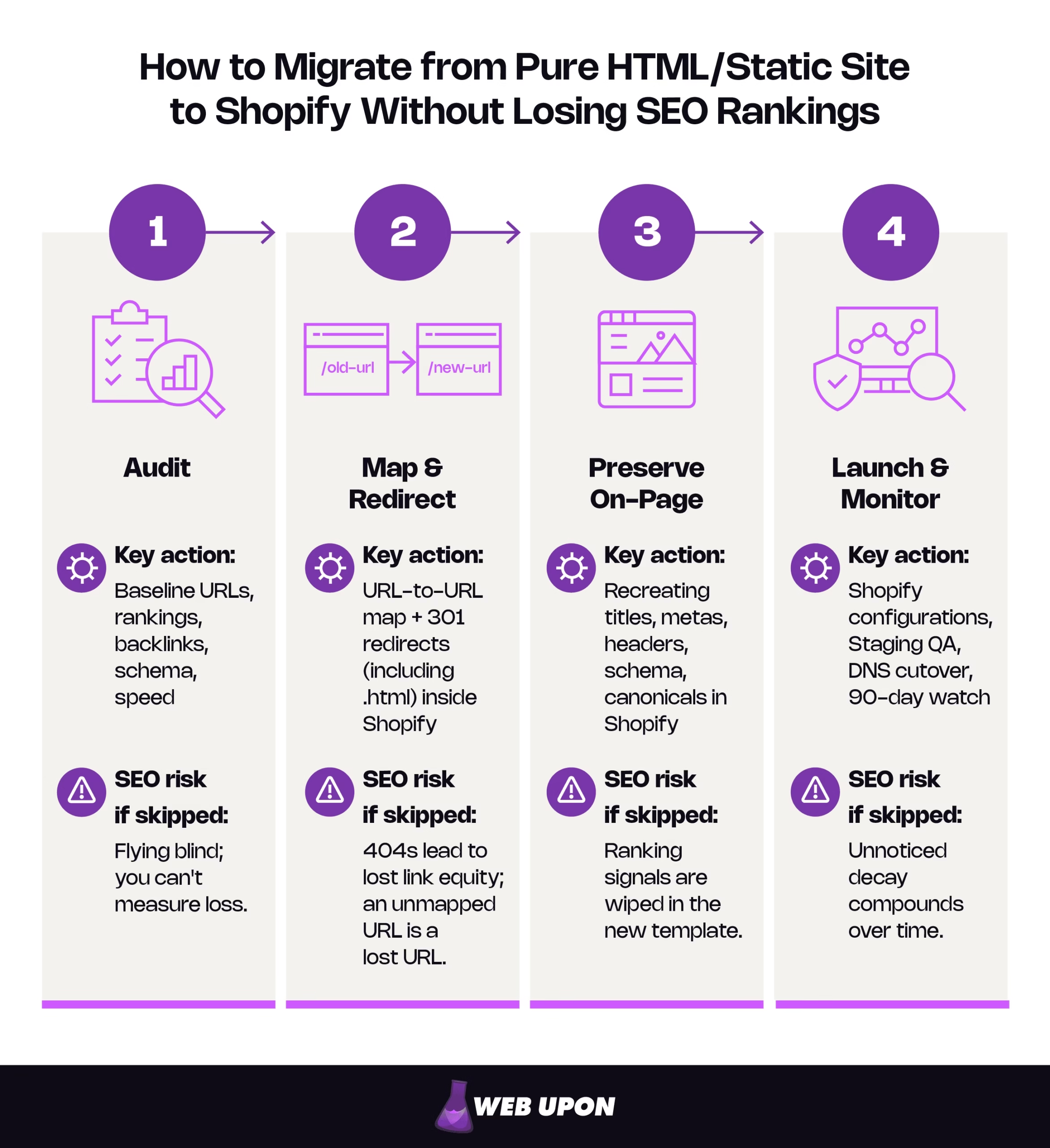
| Phase | Key action | Primary SEO risk if skipped |
| 1. Audit | Baseline URLs, rankings, backlinks, schema, speed | Flying blind; you can’t measure loss. |
| 2. Map & redirect | URL-to-URL map + 301s (including .html) inside Shopify | 404s → lost link equity; an unmapped URL is a lost URL. |
| 3. Preserve on-page | Recreating titles, metas, headers, schema, canonicals in Shopify | Ranking signals are wiped in the template. |
| 4. Launch & monitor | Shopify configurations, Staging QA, DNS cutover, 90-day watch | Unnoticed decay compounds over time. |
By the end of this guide, you’ll have a controllable plan you can run yourself or hand to a specialist: how to inventory what you have, how to build the URL map that protects your equity, how to keep Shopify’s templates from wiping your ranking signals, and how to launch and recover without guessing.
Why Migrating HTML to Shopify Is an SEO Minefield (And How to Approach It Strategically)
Understanding the Core SEO Risks Unique to HTML-to-Shopify Migrations
When a site moves from a CMS to Shopify, it carries a rulebook with it: predictable URL patterns, a database of structured content, conventions a migration can translate wholesale. A hand-built static site carries none of that. It may have /services.html, /services/pricing.html, and /services-2019-final.html all live and indexed, each following whatever logic the original developer had in mind that week. There is no rulebook to inherit. You build the map from scratch. That’s the counterintuitive truth behind the whole project: a static-to-Shopify move is often more delicate than CMS migrations.
Two structural facts drive the risk. First, Shopify enforces its own URL paths — products must live under /products/, collections under /collections/, blog posts under /blogs/, and standalone content under /pages/. Your flat, custom hierarchy has to be re-homed inside that fixed structure. Second, everything valuable your current URLs have accumulated — link equity (the ranking strength passed to a page by the sites linking to it), crawl history, years of indexed authority — is attached to addresses that are about to change. Handle the transfer well and that equity follows the pages to their new homes. Handle it carelessly and it’s stranded on URLs that no longer resolve.
The difference between the two platforms, at a glance:
| Factors | Static HTML site | Shopify |
| URL flexibility | Total — any path you want | Fixed paths (/products/, /collections/, /pages/) |
| Code control | Full, hand-written | Templated via Liquid |
| Speed baseline | Very fast (lightweight) | Heavier (commerce, apps, scripts) |
| Duplicate content | Rare unless self-inflicted | Built-in (collection vs. product URLs) |
None of this is a reason to stay on an aging static site. It’s the reason to move deliberately. And you can’t move deliberately until you know exactly what you have, which means measuring the current site before you touch a single file.
Conducting a Pre-Migration SEO Audit Before Touching a Single File
The audit exists for one blunt reason: once the old site is gone, a URL you never recorded is a URL you can’t rescue. The crawl is your proof of what was there, and it becomes the project’s system of record — so export everything to dated files and treat them as the source of truth for the rest of the migration. A thorough pre-migration SEO audit is the foundation every later step depends on; if the audit also needs to reconcile page-level content and metadata, pair it with a comprehensive content audit.
Work through it in order:
- Crawl the entire existing site — with a tool such as Screaming Frog or Sitebulb — capturing every indexed URL, title tag, meta description, H1, and canonical tag.
- Baseline your rankings by exporting all ranking keywords and their landing pages from Google Search Console, so you have a performance line to measure against later.
- Flag your priority pages — your highest-traffic and highest-authority URLs. These are non-negotiable preservation targets.
- Export your backlink profile (Ahrefs or SEMrush work well), noting which URLs carry the most referring-domain equity — these are the ones that hurt most if they break.
- Inventory your schema and any custom structured data or metadata embedded in the HTML that will need to be rebuilt in Shopify.
- Benchmark your speed — record current load times and Core Web Vitals so you can hold the Shopify build to the same standard.
That inventory feeds directly into the most important deliverable of the entire project: the URL map.
Building Your URL Mapping and Redirect Architecture Before Launch
Creating a Comprehensive URL Redirect Map from Static to Shopify Structure
The URL map is a single master spreadsheet, and it’s built before any migration work begins. Every existing HTML address gets a row, and every row gets a destination inside Shopify’s structure. This is where the platform’s rigidity stops being abstract: a product page must resolve to /products/, a blog post to /blogs/, standalone content to /pages/. There’s no flexibility, so the map is where you make every re-homing decision on paper instead of in production.
Some URLs will have an obvious equivalent. Others won’t — a niche landing page, a discontinued product, a one-off promo. For each of those, decide deliberately: consolidate it, redirect it to a logical parent collection, or rebuild it as a custom page. And prioritize ruthlessly. The URLs carrying backlinks, strong rankings, and real organic traffic are the ones where a mapping error costs you the most, so map those first and verify them twice.
A workable template looks like this:
| Old static URL | New Shopify URL | Redirect type | Priority (traffic/links) | Notes |
| /shop/widget-blue.html | /products/widget-blue | 301 | High | Has 12 backlinks |
| /about-us.html | /pages/about-us | 301 | Medium | Nav page |
| /category/old-promo.html | /collections/sale | 301 | Low | Consolidate |
Keep a small reference table pinned somewhere visible so nobody on the project guesses at Shopify’s paths:
| Content type | Required Shopify path |
| Product | /products/ |
| Collection / category | /collections/ |
| Blog post | /blogs/ |
| Standalone page | /pages/ |
Once the map exists, the work stops being strategic and becomes execution: putting those redirects into Shopify correctly.
Implementing 301 Redirects Correctly Inside Shopify
A 301 redirect is the instruction that tells Google a page has moved permanently and hands its accumulated ranking strength to the new address. A 302 says the move is only temporary, so Google keeps the original page in its results rather than transferring that strength to the new one. For a migration — which is permanent — you always want 301s, and Shopify’s native tool issues them by default.
Inside Shopify, straightforward one-to-one redirects live under Content → Menus → URL Redirects. For a large migration with hundreds or thousands of entries, don’t touch them by hand. Use the tool’s bulk CSV import to avoid the typos that a manual afternoon guarantees. Shopify’s own URL-redirects documentation covers the mechanics, including the downloadable CSV template.
Three rules protect your equity during implementation. Confirm every redirect is a true 301, especially if any run through a third-party app rather than Shopify’s native tool. Avoid redirect chains — a URL that points to a second URL that points to a third — because each extra hop adds crawl latency and wastes crawl budget. And test everything before go-live, whether with Screaming Frog’s redirect checker or a bulk status-code tool. The one outcome you never accept is a previously indexed URL left to return a 404: a 301 consolidates that page’s signals onto its replacement, while an unresolved 404 forfeits that consolidation entirely, on exactly the pages you worked hardest to earn.
Handling the .html Extension Problem Specific to Static Site Migrations
Static sites wear their file extensions in public: /about-us.html, /services.htm, /products/blue-widget.html. Shopify’s URL structure doesn’t use them at all. So every single .html and .htm address that Google has indexed must be explicitly redirected to its clean Shopify equivalent — /about-us.html → /pages/about-us, /products/blue-widget.html → /products/blue-widget. This is one of the most commonly missed steps in the entire process, and it’s missed precisely because the extensions feel like a cosmetic detail rather than a set of live, ranking, indexed URLs.
Here’s a point worth being exact about, because it’s where people get burned: Shopify’s redirect tool is list-based, not rule-based. It does not run true wildcard or regular-expression logic that would, say, strip .html from every URL automatically. When guides say to “set up pattern-based redirects,” what that means in practice is one of three things:
- Bulk CSV import — you still produce one row per URL, but you generate them programmatically with find-and-replace in your spreadsheet rather than typing them out. This is the right answer for most migrations.
- A dedicated redirect app from the Shopify App Store, for larger or genuinely rule-driven sets.
- Edge- or proxy-level rules (handled at a CDN or reverse-proxy layer) for true wildcard behavior — an advanced setup, and a sensible moment to bring in a specialist.
One mechanism detail makes the whole thing work: Shopify’s redirect tool will happily accept a “from” address that never existed as a real Shopify page — like /about-us.html — and send it to a live Shopify URL. In fact, Shopify’s documentation notes that redirects work specifically from broken URLs that return a 404, which is exactly what a legacy .html path does on Shopify. That’s how you rescue extensions the platform itself can’t serve. For anything but a large, uniformly repetitive set, one-to-one mapping is the safe default. After launch, watch Google Search Console for the tell-tale symptom of a missed extension: both the old .html version and the clean version showing up as indexed, competing with each other.
Preserving On-Page SEO Signals During the Shopify Theme Build
Migrating Title Tags, Meta Descriptions, and Header Structure to Shopify
Redirects protect where your pages live. On-page signals protect what’s on them and Shopify’s templates will happily overwrite those signals with generic defaults if you let them.
By default, Shopify auto-generates title tags from product and page names, often in a “Product Name – Store Name” format. If your ranking static pages used custom-optimized titles, that default is a downgrade so override each one in the SEO section of the page to match or improve what already ranks. Meta descriptions need the same manual care: Shopify won’t populate them for you, and a blank description is a wasted opportunity on a page you’re trying to protect. Then check your theme’s H1 handling, because some themes render the store name or a collection title as the H1 and push your real heading down the hierarchy, muddying the keyword signal Google reads first.
| Element | On the static site | In Shopify | Action to preserve it |
| Title tag | Hand-coded in <head> | Auto-generated from page name | Override manually per page. |
| Meta description | Hand-coded in <head> | Blank by default | Write individually for priority pages. |
| H1 | Hand-coded | Theme may inject store/collection name | Audit and correct in the theme. |
| Header hierarchy | Manual H2/H3 structure | Template-driven | Confirm structure survived the build. |
| Body copy | Static HTML | Migrated into Shopify | Move as-is — do not rewrite yet. |
That last row carries a rule worth stating plainly: do not rewrite your copy during the migration. If you change URLs, templates, and body content in a single launch and rankings move afterward, you’ve destroyed your ability to tell why for diagnosis. Was it a redirect miss or a content change? You’ll never isolate it. Migrate first, confirm the site is stable, then improve content as a separate, measurable project. Migration and content rewrites are two projects, and running them together turns a controllable process into a guessing game.
Recreating Schema Markup and Structured Data in Shopify’s Liquid Environment
Static sites often carry hand-coded schema — the structured data, usually written as JSON-LD, that helps Google understand what a page actually is (a product, an article, a local business). In Shopify, that markup gets rebuilt inside Liquid, Shopify’s templating language, which generates your pages from shared templates rather than one file at a time.
That templating cuts both ways, and it’s the key insight for this section. Because a single Liquid block renders across every product or every article, one correct schema implementation scales across your whole catalog automatically. But one error scales just as fast — a broken block that would have damaged a single page on a static site can misfire across a thousand Shopify pages at once. That asymmetry is the entire argument for validating on staging before launch rather than firefighting after.
Practically: Shopify themes ship with basic Product schema, but review and enrich it with the offers, brand, sku, and (where genuinely present) aggregateRating properties your static pages may have had. Rebuild any custom types you relied on — LocalBusiness, BreadcrumbList, Article — in the relevant Liquid templates, and validate every one with Google’s Rich Results Test before go-live; schema.org remains the reference for the type definitions themselves.
One note that keeps this current: not all schema still earns a visible search feature. Product, Review, Article/BlogPosting, and BreadcrumbList markup still produce rich results and are worth defending through the migration (breadcrumb rich results now appear on desktop only). FAQ rich results, however, were retired by Google on May 7, 2026 — so while FAQPage markup is still valid and harmless to include, rebuild your structured data for the types that still earn a result, and don’t expect a SERP feature from FAQ schema anymore.
Configuring Canonical Tags and Avoiding Shopify’s Duplicate Content Traps
A canonical tag tells Google which version of a duplicate or near-duplicate page is the “official” one to index and rank. Static sites rarely need to think about it. Shopify makes it unavoidable, because the platform generates the same product under more than one address — /collections/category/products/item alongside the clean /products/item. That’s a built-in duplicate-content quirk that simply doesn’t exist on a hand-built HTML site.
The reassuring part: Shopify’s default behavior already handles this well, automatically adding a canonical tag that points the collection-nested version back to the clean /products/ URL to keep duplicate content out of search results. So the risk here usually isn’t Shopify itself — it’s a heavily customized theme or a third-party app that alters the <head> and quietly breaks that default. Your job after the build is narrow and specific: confirm your particular theme still emits the correct canonical across product, collection, and page templates, with no accidental self-referencing or mis-pointing introduced. And if your static site used canonicals deliberately to consolidate similar pages, recreate that logic explicitly in Liquid rather than assuming it carried over.
Preserving Internal Linking Architecture and Navigation Structure
Your internal links are how authority flows through the site and how Google understands its hierarchy — and on a static site, many of them are hand-coded straight into the HTML. They won’t survive the move on their own; they have to be deliberately rebuilt in Shopify’s menu system, collection structure, and in-content links. Map your existing internal link structure before migration and use it as the blueprint for the rebuild, and enable Shopify’s breadcrumb functionality in the theme, since breadcrumbs help both crawlers and users read your site’s structure.
Watch for one easily-missed failure in particular: hard-coded links inside migrated body copy. If an old page linked to /about-us.html in its text and you paste that content into Shopify untouched, that link now fires through a redirect at best — or hits a 404 at worst — turning a clean internal link into a redirect chain you didn’t intend. Sweep your migrated content for old-path links and repoint them directly to the new Shopify URLs, so every internal link resolves in a single hop. A tidy internal structure keeps authority flowing to the pages that earned it; a degraded one quietly starves them.
With your signals preserved, attention shifts from individual pages to how Google crawls and experiences the whole store.
Technical SEO Configuration and Crawlability Setup in Shopify
Submitting Your XML Sitemap and Configuring Google Search Console Post-Migration
Shopify generates an XML sitemap automatically at yourdomain.com/sitemap.xml, with child sitemaps for products, collections, blogs, and pages that update on their own. Your first job on launch day is to confirm it actually includes every critical page, product, collection, and blog post, then submit it to Google Search Console as a priority action to accelerate re-indexing. Ideally you’ve already added the Shopify property to Search Console before the move, so you can use the URL Inspection tool to watch your most important pages get re-indexed in the days after launch. If the domain is new to Search Console, add both the www and non-www versions and align the preferred version with your Shopify configuration.
Then watch the Page Indexing report (Search Console’s coverage report) daily for the first two weeks. This is your early-warning system for unexpected 404s, crawl errors, and indexing anomalies — catching them while they’re small, before they compound into something that shows up in your traffic.
Managing Crawl Budget and Indexing Efficiency on Shopify
Crawl budget is the finite number of URLs Google will bother to crawl on your site in a given window. Waste it on junk pages and your important pages get seen — and refreshed — less often.
Before this worries you, right-size it to your situation, because it’s largely a large-site concern. Google’s own position is that a site without a large number of rapidly changing pages — or whose pages are crawled the same day they’re published — doesn’t need to worry about crawl budget at all; it becomes a real issue only on sites with thousands of URLs or heavy faceted navigation. A 40-page brochure site migrating to Shopify can essentially ignore it. A large catalog cannot, because Shopify spins up filtered and sorted collection URLs endlessly — something like /collections/shoes?sort_by=price-ascending&color=blue represents an effectively infinite set of combinations with zero unique ranking value.
If you’re in that large-catalog camp, use Shopify’s editable robots.txt (customized by adding a robots.txt.liquid template to your theme) to disallow crawling of parameterized URLs, duplicate collection paths, and internal search-result pages. Take care not to accidentally block the product, collection, and page URLs you actually want indexed — a classic error when copying directives over from an old static-site config. Shopify’s pagination adds its own variants (?page=2 and so on) that deserve the same scrutiny.
A speed optimization audit is the natural next diagnostic, because how fast Shopify serves those pages is its own ranking story.
Optimizing Page Load Speed and Core Web Vitals on Shopify Post-Migration
Let’s be honest about the trade-off: you’re leaving a fast static site for a heavier platform. Static sites are quick because they do very little. Shopify is heavier because it does more — cart, checkout, inventory, apps. The goal isn’t to beat a bare HTML page on raw speed; it’s to keep your Core Web Vitals in Google’s “good” range while gaining real commerce.
Core Web Vitals are the three user-experience metrics Google factors into rankings: LCP (Largest Contentful Paint, how fast the main content loads), CLS (Cumulative Layout Shift, how visually stable the page is as it loads), and INP (Interaction to Next Paint, how quickly the page responds when someone clicks, taps, or types). INP officially replaced the older First Input Delay metric on March 12, 2024, and it’s stricter because it measures responsiveness across the whole visit, not just the first interaction. One practical wrinkle: INP is a field metric drawn from real users (via the Chrome User Experience Report), so a brand-new Shopify store won’t have INP data on day one — plan to monitor it as traffic arrives rather than expecting a lab tool to hand it to you pre-launch.
The two biggest, most controllable levers are both yours to pull. First, theme choice — pick a theme with demonstrated Core Web Vitals performance and avoid feature-heavy themes that load scripts you’ll never use on every page. Second, app discipline — every app that injects JavaScript into your storefront costs you performance, and most post-migration speed regressions trace back to a bloated theme or a stack of scripts, not to Shopify’s core. Benchmark your static site’s LCP, CLS, and INP before the move and hold the Shopify build to those numbers. And compress your images during migration rather than re-uploading originals. Shopify’s CDN serves your files, but it won’t rescue you from oversized source images.
Ensuring Mobile Responsiveness Meets Google’s Mobile-First Indexing Standards
Here’s a rare place where the migration almost certainly helps your rankings. Google uses mobile-first indexing, meaning it primarily reads the mobile version of your site to rank you. If your static site predates 2018 — when Google began rolling mobile-first indexing out — and was never fully mobile-responsive, moving to Shopify, where every theme is responsive by default, resolves a mobile deficiency you may have been quietly penalized for.
The default responsiveness isn’t a free pass, though. Verify that migrated custom content, embedded media, and any old table-based layouts render correctly on real mobile viewports, and use Search Console’s Mobile Usability report after launch to catch anything the theme build introduced. Because Google ranks on the mobile version, make sure every SEO element — title tags, meta descriptions, structured data — is present and identical there, not just on desktop.
Go-Live Protocol, Post-Migration Monitoring, and Long-Term SEO Recovery
Testing the Staging Environment Before Go-Live
Build and fully configure the store on a staging environment — a .myshopify.com subdomain or a password-protected store — before you point your real domain anywhere. Staging is where you confirm the migration actually worked while mistakes are still free.
Run a pre-launch checklist and treat it as go/no-go:
- Every redirect in the URL map tested for the correct destination and a 301 status
- Full crawl of the staging store (Screaming Frog) — no broken internal links, missing metas, or duplicate title tags
- All schema, canonical tags, and robots.txt validated with Google’s testing tools
- Visual QA of every migrated page — content, images, and formatting all transferred (missing content is a ranking risk, not just a UX one)
One caveat: a password-protected store gates the storefront, so some redirects and crawler-facing behaviors can’t be fully validated until the password comes off. Confirm structure, metadata, schema, and internal links on staging, then re-run your redirect and status-code checks in the first minutes after go-live, when the live domain is genuinely resolving.
Executing the Domain Transfer and DNS Cutover Without SEO Disruption
The cutover itself is a short, high-stakes window, so run it like a checklist rather than a moment of nerve:
- Before cutover: Reduce your DNS TTL values 24–48 hours ahead of time. TTL controls how long the internet caches your DNS settings, so lowering it shortens the window in which some visitors still land on the old static site during the switch.
- Before cutover: Confirm SSL is active on the Shopify store. Google treats HTTP and HTTPS as different URLs and prefers the HTTPS version as canonical except when its SSL certificate is invalid, so an SSL lapse mid-transfer can trigger indexing problems you don’t need.
- Timing: Schedule the switch for a low-traffic window — typically Tuesday through Thursday, away from weekends and peak trading — to minimize exposure.
- Immediately after propagation: Verify the live site loads, every redirect fires correctly, and the sitemap returns a 200 status. Then re-run the redirect tests you couldn’t fully complete behind the staging password.
Monitoring Search Console, Analytics, and Keyword Rankings After Launch
Launch isn’t the finish line; it’s the start of a 90-day monitoring window. Set up (or verify) a proper professional GA4 setup on Shopify before go-live — and take this seriously, because Universal Analytics stopped processing new data on July 1, 2023 and has since been shut down. Any old static site still running only Universal Analytics code has been collecting nothing for a while, so this isn’t a reconfiguration, it’s overdue. Create Search Console alerts for spikes in 404 errors — the signal that Google is discovering unmapped URLs — and compare organic traffic week-over-week and month-over-month against your pre-migration baseline, segmented by page type so you can isolate exactly where any loss is concentrated.
A simple cadence keeps it manageable:
| Timeframe | What to monitor | Tool | Act if… |
| Week 1 | 404s, indexing, redirect integrity | Search Console (Page Indexing) | Any priority URL 404s or drops out |
| Weeks 2–4 | Rankings, organic traffic, crawl errors | GSC + GA4 | A specific high-value page flatlines |
| Weeks 5–12 | Traffic vs. baseline, stabilization | GA4 + rank tracking | Decline persists past ~4 weeks |
Expect a temporary ranking fluctuation of roughly 2–6 weeks as Google re-crawls and re-evaluates the migrated site; Google’s own guidance is to anticipate temporary fluctuation during a move, with a medium-sized site taking a few weeks for most pages to settle and larger sites longer. That range is typical, not a promise — small sites often settle in two to four weeks, while a large catalog’s full re-crawl can run eight to twelve. The skill is telling normal wobble from a real problem:
| Normal re-indexing flux | A real problem |
| Rankings dip, then recover within weeks. | A high-value URL flatlines at zero and stays there. |
| Temporary impression drops across many pages. | A rising, persistent 404 count in Page Indexing. |
| Pages briefly reshuffle in the index. | A sustained traffic decline that doesn’t recover after ~4 weeks. |
| Broad, temporary, self-correcting. | Narrow, persistent, tied to specific named URLs. |
The tell is duration and specificity. Broad and temporary means wait. Narrow, persistent, and attached to named URLs means intervene — usually by finding the redirect you missed. And as a final sweep, reach out to the high-value sites still linking to your old static URLs and ask them to update the target to the new Shopify address; a redirect preserves that equity, but a direct link is stronger still.
Your SEO Migration Is a Managed Process, Not a Shopify Risk
Ranking loss in a Shopify migration doesn’t come from Shopify — it comes from skipped steps: the unmapped .html page, the overwritten title tag, the redirect chain nobody tested. Handle the transfer with the discipline it deserves and a temporary re-indexing wobble is the worst you should see, with full stabilization typically arriving within a few weeks. Another key point is to keep migration and content rewrites separate. Changing URLs, templates, and copy at once destroys your ability to diagnose any ranking movement.
If you’d rather not stake your organic traffic on getting every step right the first time, that’s exactly what we do. Contact Web Upon and we’ll de-risk the migration end to end so you gain Shopify’s commerce capability and keep the rankings you spent years earning.